
 Go to Blog
Thank you for choosing ParUp Golf, we’re delighted to have you on board! Below is a simple, visual guide to help you get the most from the ParUp Golf app. Each key feature has its own section, and you can use the quick links to jump straight to what you need.
How do I register and create a profile in the ParUp Golf app?
- Tap the app icon for your device on the website or search ‘ParUp Golf‘ in the app store.
- Install and open the app from the app store page.
- Tap the ‘sign up‘ button.
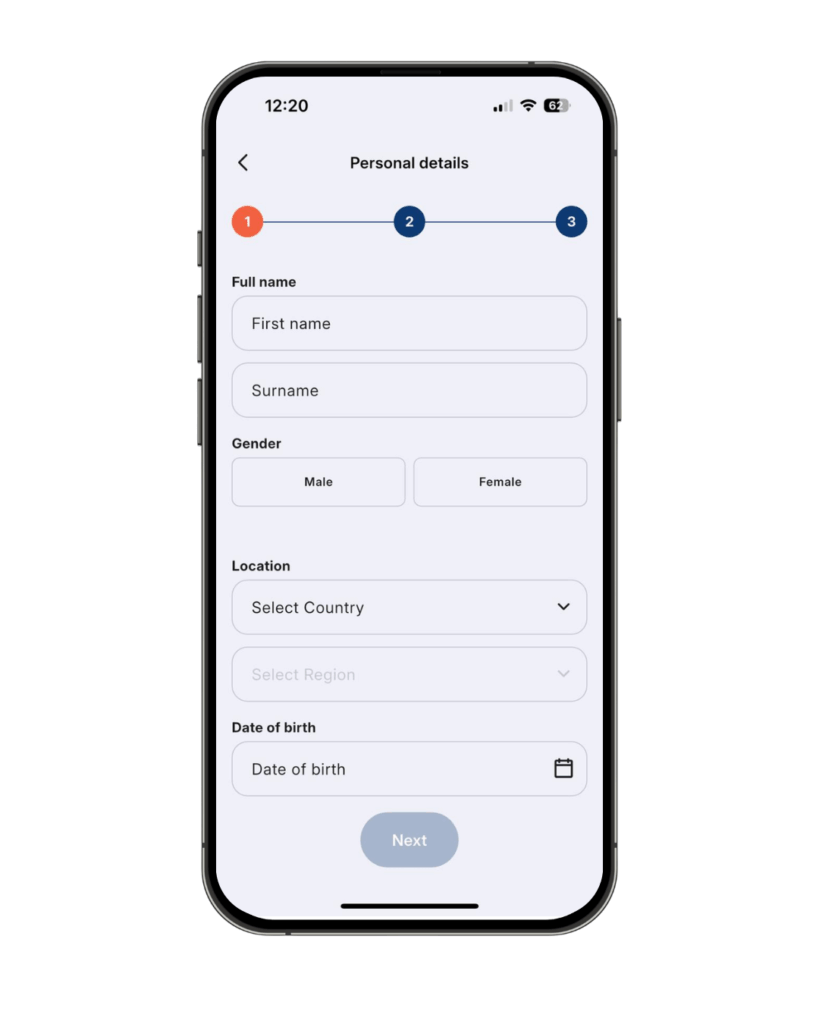
- Enter the relevant information to create your profile (e.g. name, location, etc).
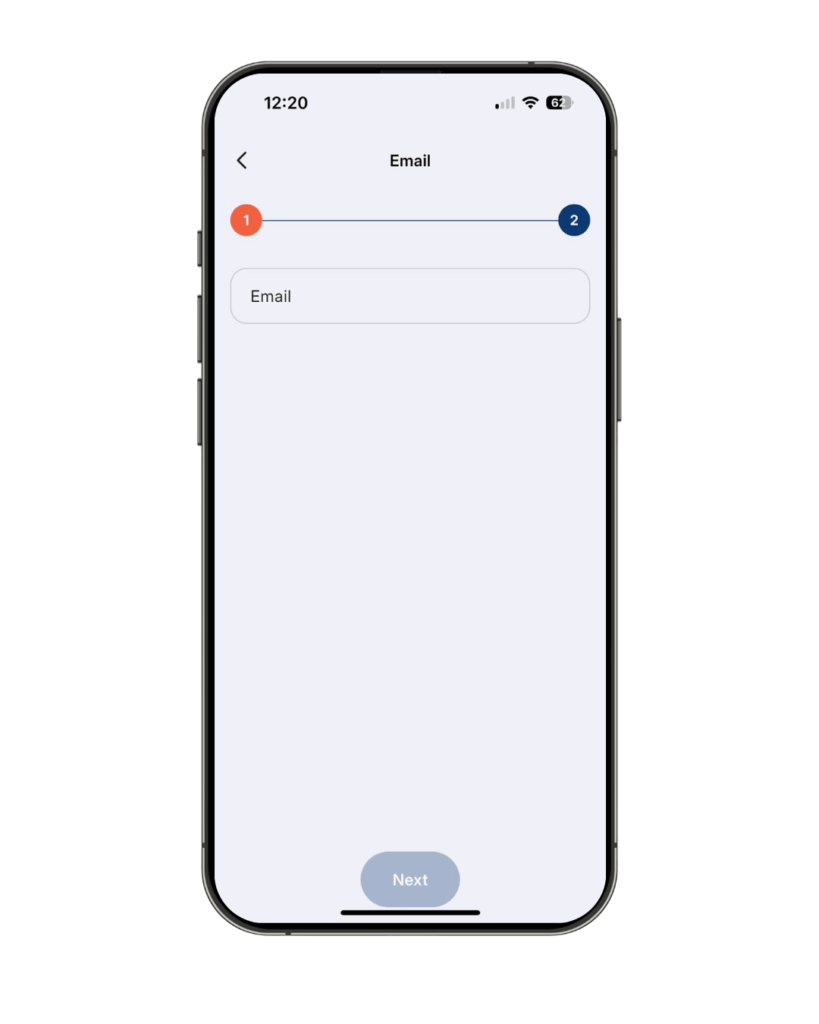
- Add your email address, set a password and review / accept the Terms of Use.
- Enter the verification code and tap ‘create account‘ (the code is emailed to you – check junk folder).
- The final stage is to add your profile picture and select your handicap.
What do I do if I have forgotten my password for the ParUp Golf app?
- Tap the ‘log in‘ button.
- Tap the ‘forgot password?‘ text link.
- Enter email address.
- Enter verification code and tap ‘change password‘ (the code is emailed to you – check junk folder).
- Once the new password has successfully been updated, you’ll be re-directed to the log-in screen.
How do I create a new group in the ParUp Golf app?
These are instructions that the group organiser needs to follow in order to create a new group in the ParUp Golf app:
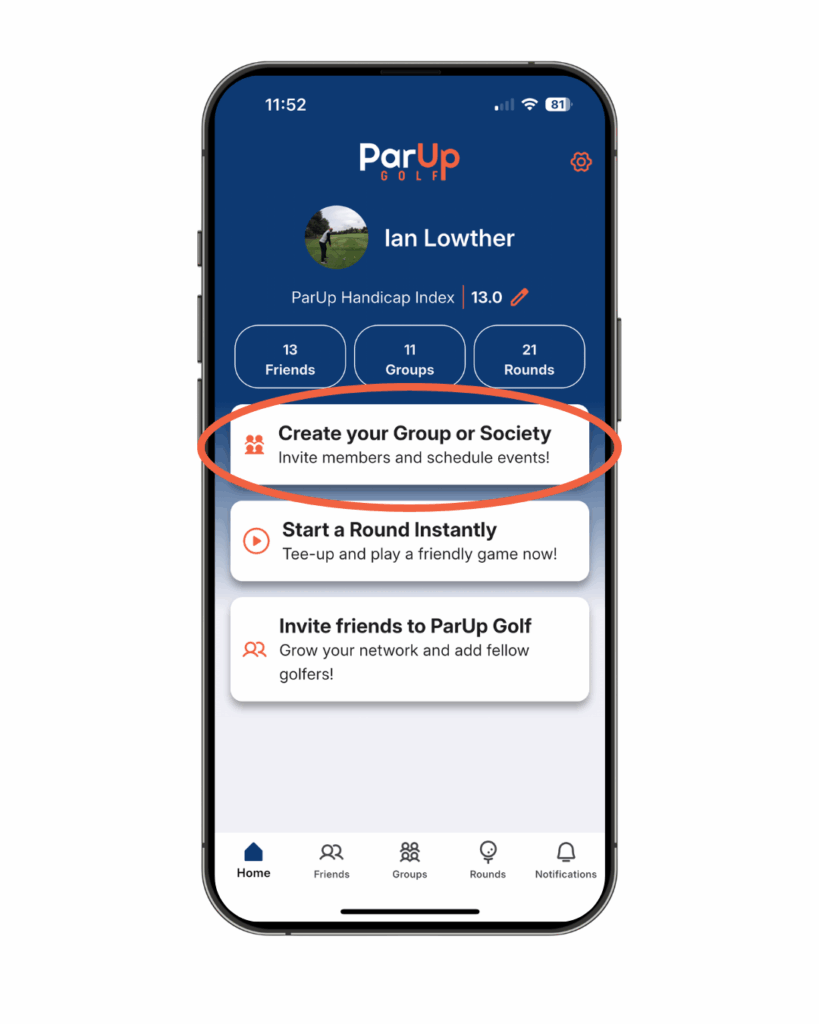
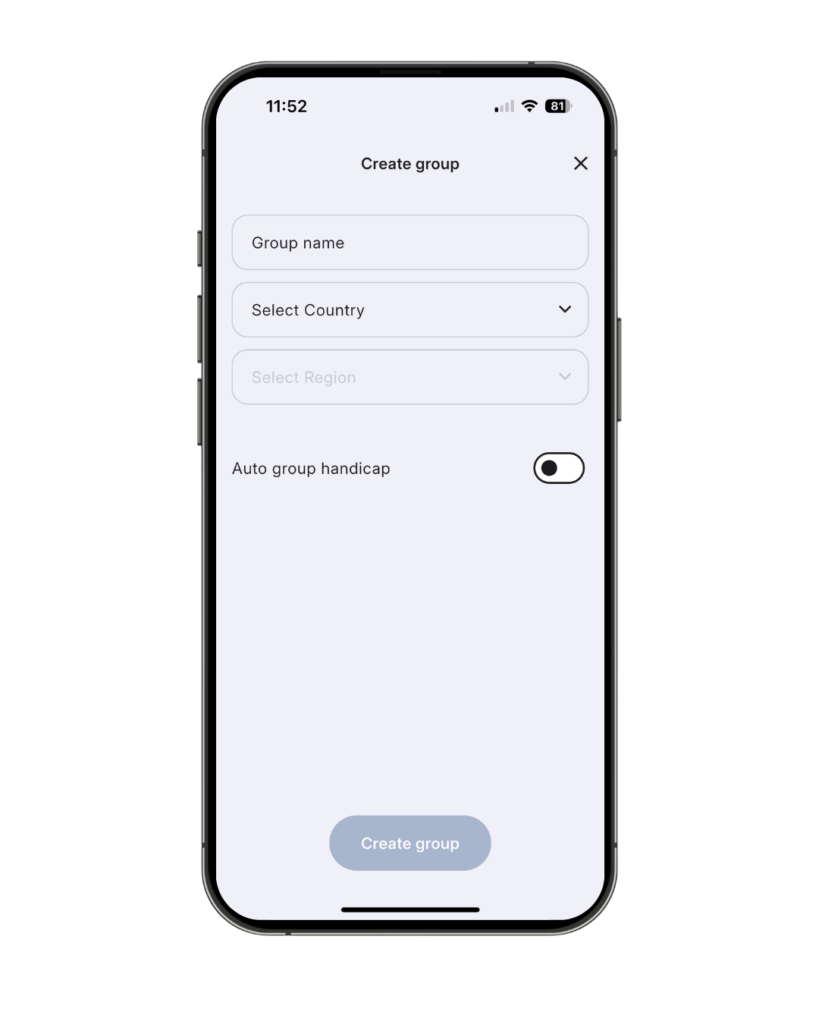
- Tap the ‘create your group or society’ banner on the home screen.
- Enter a group name, set your location (country and region) and choose whether you want to turn on the auto group handicap feature. Your group is now created!
How do I use the auto group handicap feature in the ParUp Golf app?
Key points to note about handicaps and group handicaps in the ParUp Golf app:
- All players set their own individual handicap when creating a profile on the app (the ‘ParUp handicap index’).
- Players can then have a different group handicap for every group they play in, based on their performance in each specific group.
- Group handicaps can either be automatically updated (post-event) based on the ParUp Golf handicap rules or they can be manually updated by the group organiser (or both).
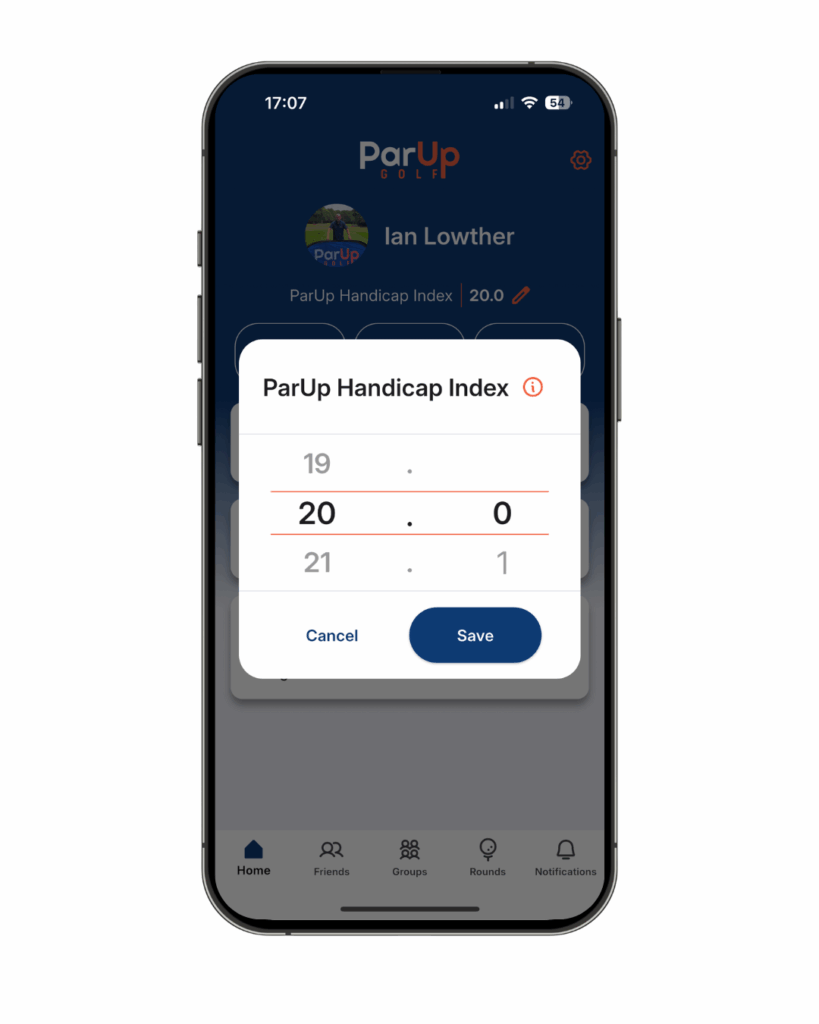
These are instructions that the group organiser needs to follow in order to use the auto group handicap feature in the ParUp Golf app:
- When on the ‘create group’ screen, toggle the ‘auto group handicap‘ button on.
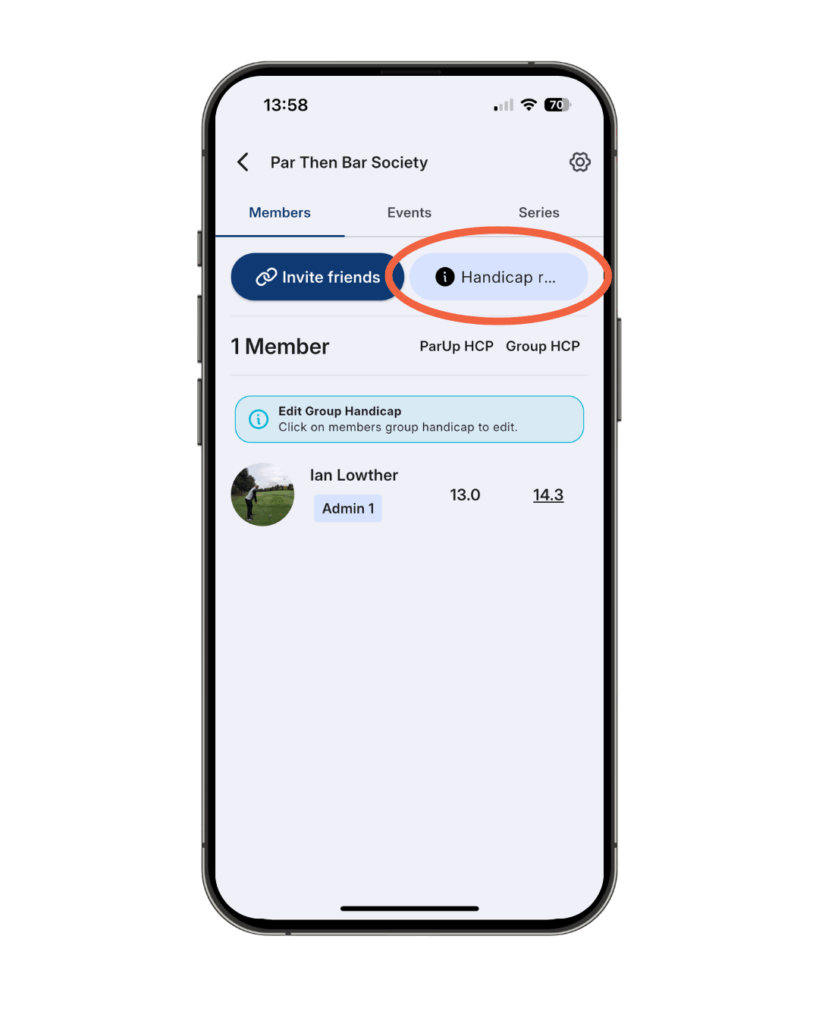
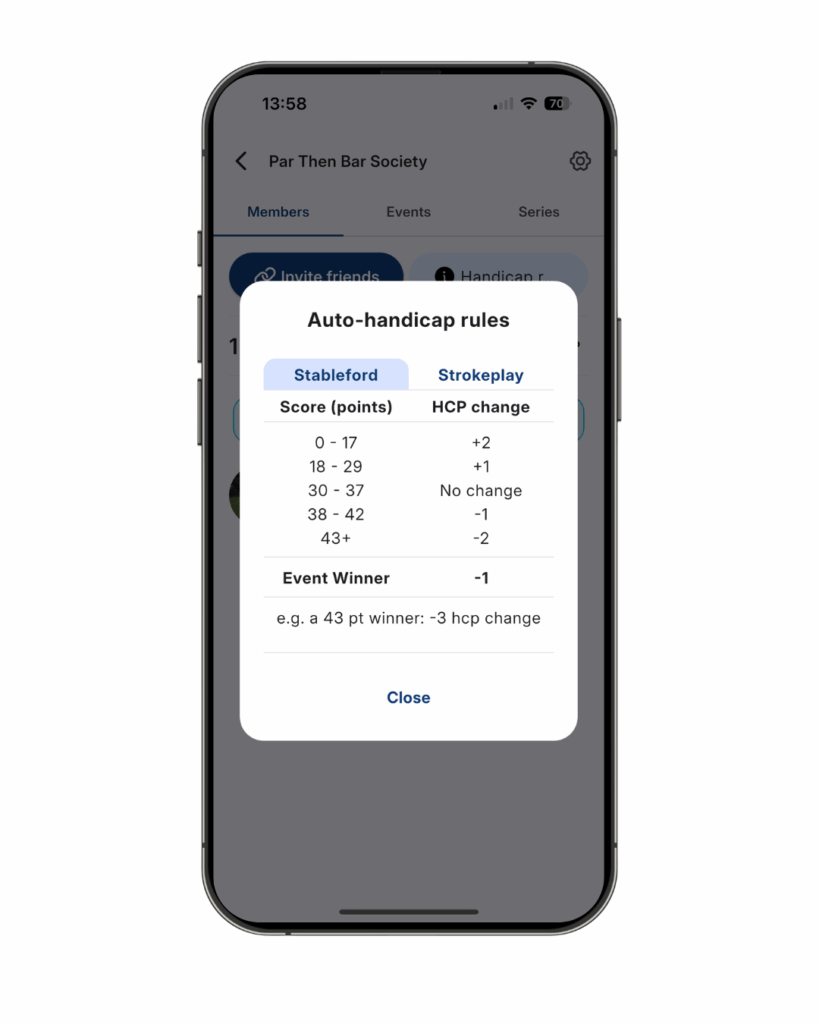
- Handicap rules can be found via the ‘members‘ screen for the group (tap the light blue ‘handicap rules‘ button).
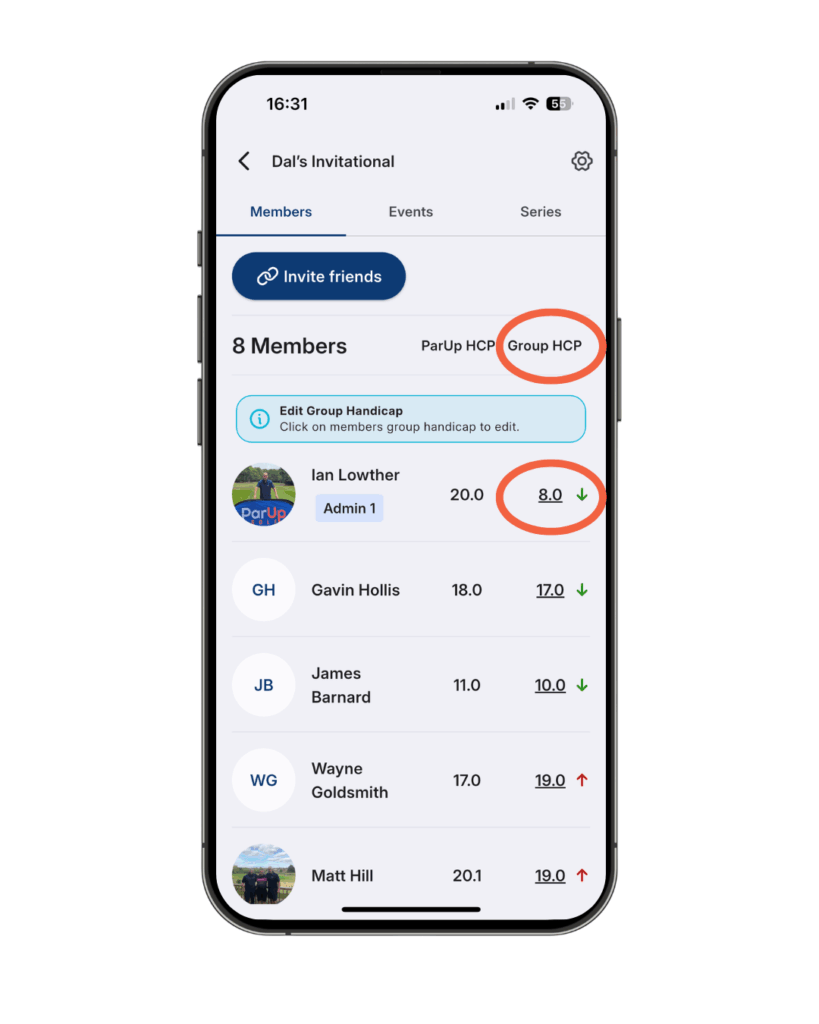
- The automated post-event handicap changes are also displayed on the ‘members‘ screen for the group, with any changes being visualised by a green down arrow or red up arrow.
- Additional manual updates can be made if necessary (if a group’s own handicap rules differ to the ParUp Golf ones).
- It is also an option to not use the auto group handicap feature and instead make all group handicap changes manually after the event.
How do I get friends to join a new group in the ParUp Golf app?
- Tap ‘groups’ in the bottom navigation.
- Tap the group you have just created.
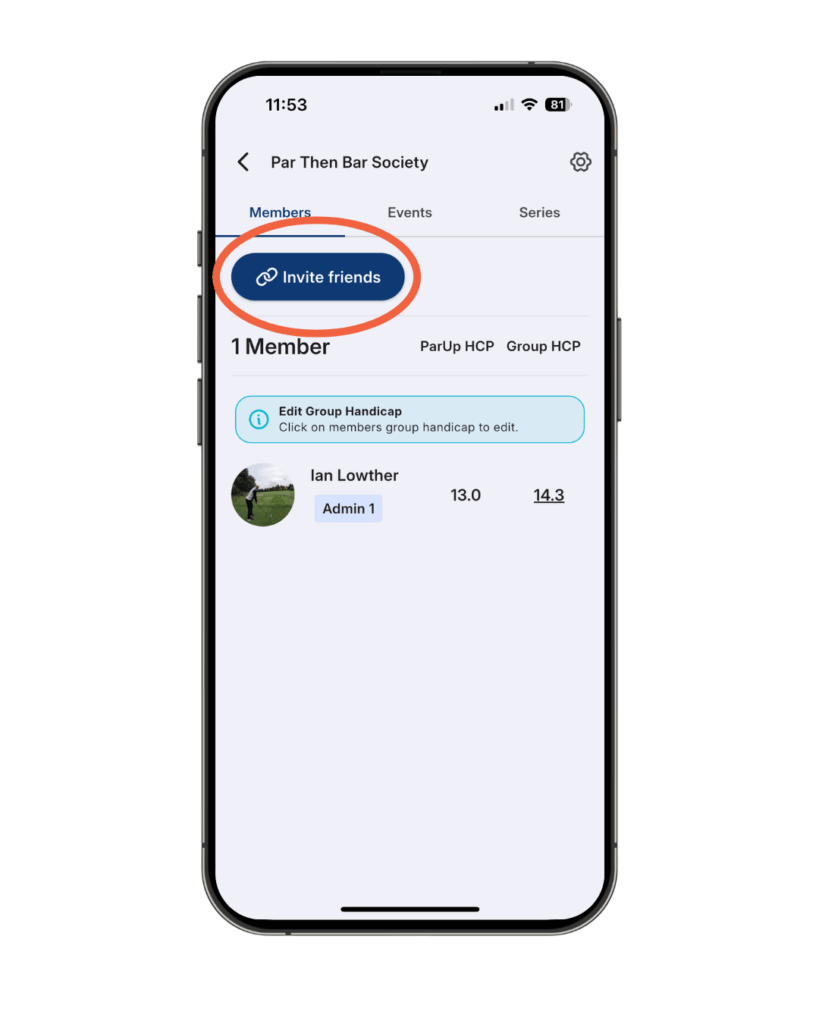
- Tap the navy blue ‘invite friends’ button on the ‘members‘ tab.
- Copy this link and share with friends via your preferred channel.
- Friends will start to appear in the group members list as they join.
How do I create a new group event in the ParUp Golf app?
These are instructions that the group organiser needs to follow in order to create a new group event in the ParUp Golf app:
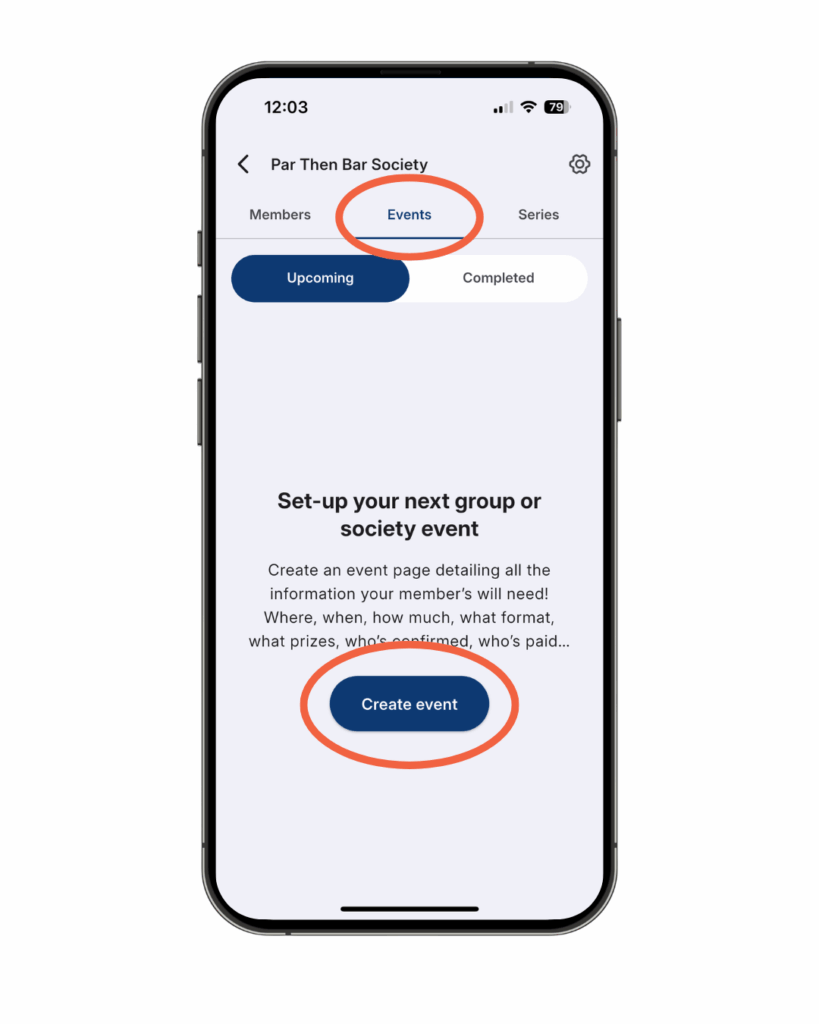
- Within your new group, tap the ‘events’ tab at the top.
- Tap the navy blue ‘create event’ button.
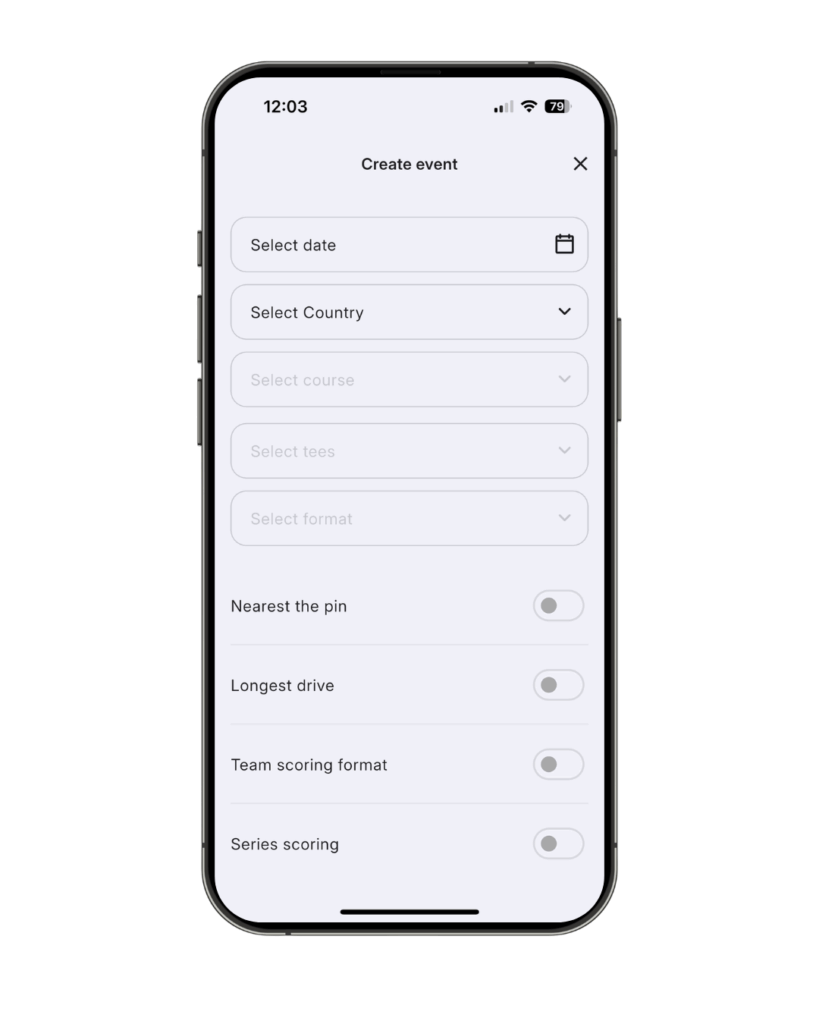
- Enter key information from the drop-down menus (e.g. date, country, course, tees, playing format) to create and schedule the new group event.
- Then select which of the optional extras you wish to include (if any), by toggling the button on or off for nearest the pin, longest drive, team scoring and series scoring.
How do I add ‘nearest the pin’ when creating a new group event in the ParUp Golf app?
These are instructions that the group organiser needs to follow in order to add ‘nearest the pin’ when creating a new group event in the ParUp Golf app:
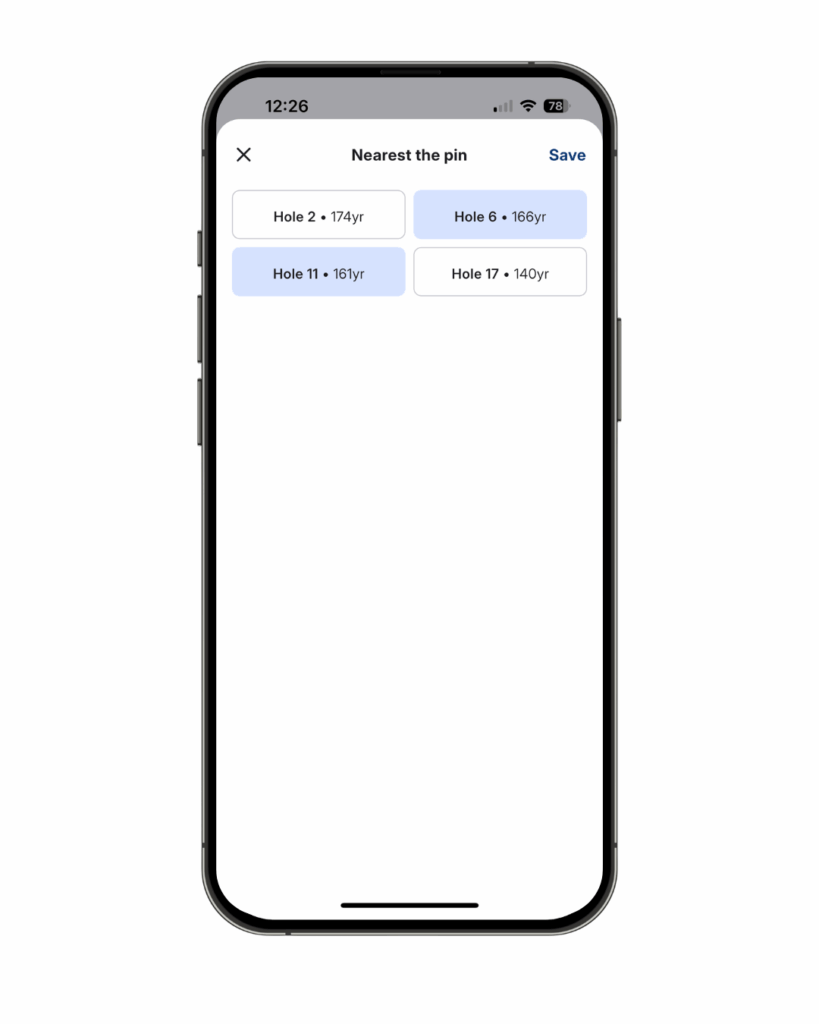
- When on the ‘create event’ screen, toggle the ‘nearest the pin’ button on.
- You will then see a list of all par 3 holes on your chosen course – tap the holes you want to select.
Please note – you can currently only select a maximum of two holes per event for nearest the pin, however this will soon be changing to be unlimited.
How do I add ‘longest drive’ when creating a new group event in the ParUp Golf app?
These are instructions that the group organiser needs to follow in order to add ‘longest drive’ when creating a new group event in the ParUp Golf app:
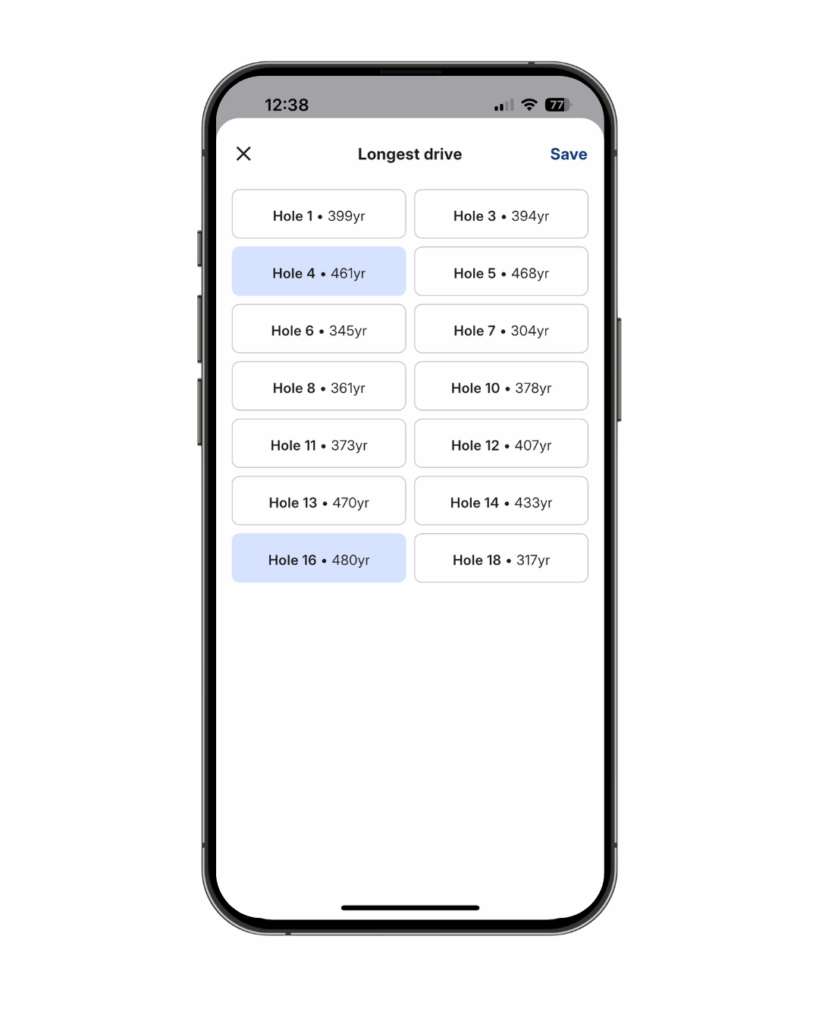
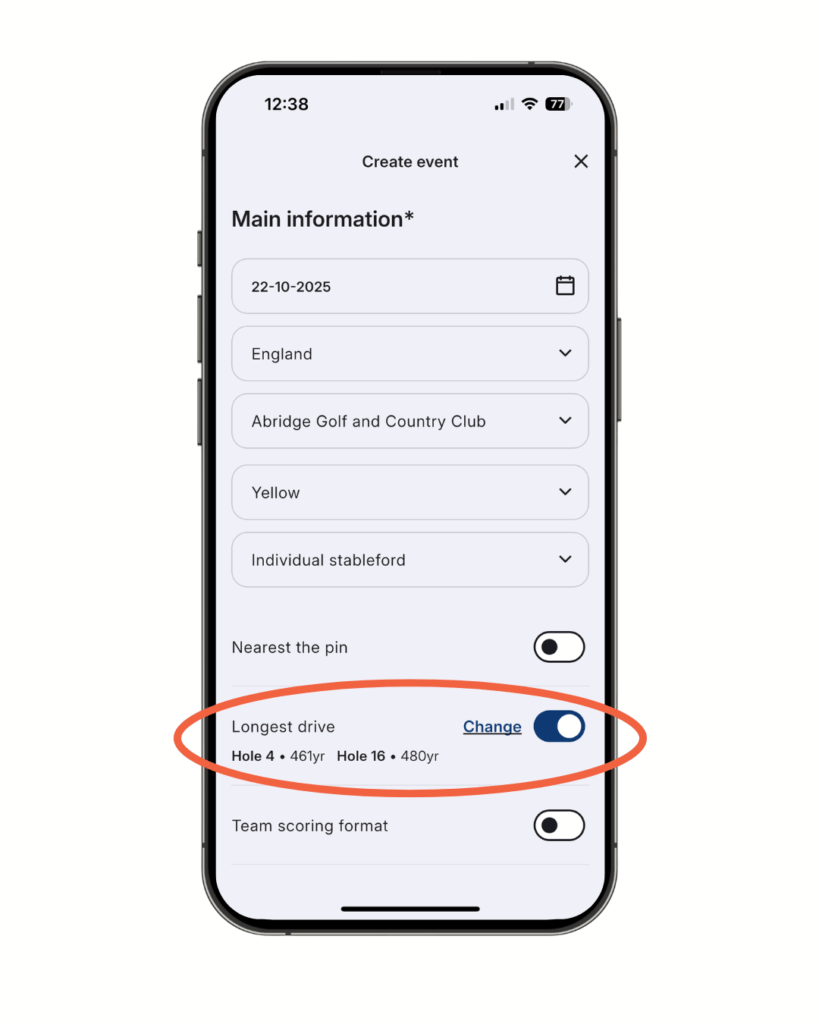
- When on the ‘create event’ screen, toggle the ‘longest drive‘ button on.
- You will then see a list of all par 4 and par 5 holes on your chosen course – tap the holes you want to select.
Please note – you can currently only select a maximum of two holes per event for longest drive, however this will soon be changing to be unlimited and there will also be the option to add ‘nearest the pin in 2‘ and ‘nearest the pin in 3‘ as alternative side games to longest drive.
How do I add a team scoring format when creating a new group event in the ParUp Golf app?
These are instructions that the group organiser needs to follow in order to add a team scoring format when creating a new group event in the ParUp Golf app:
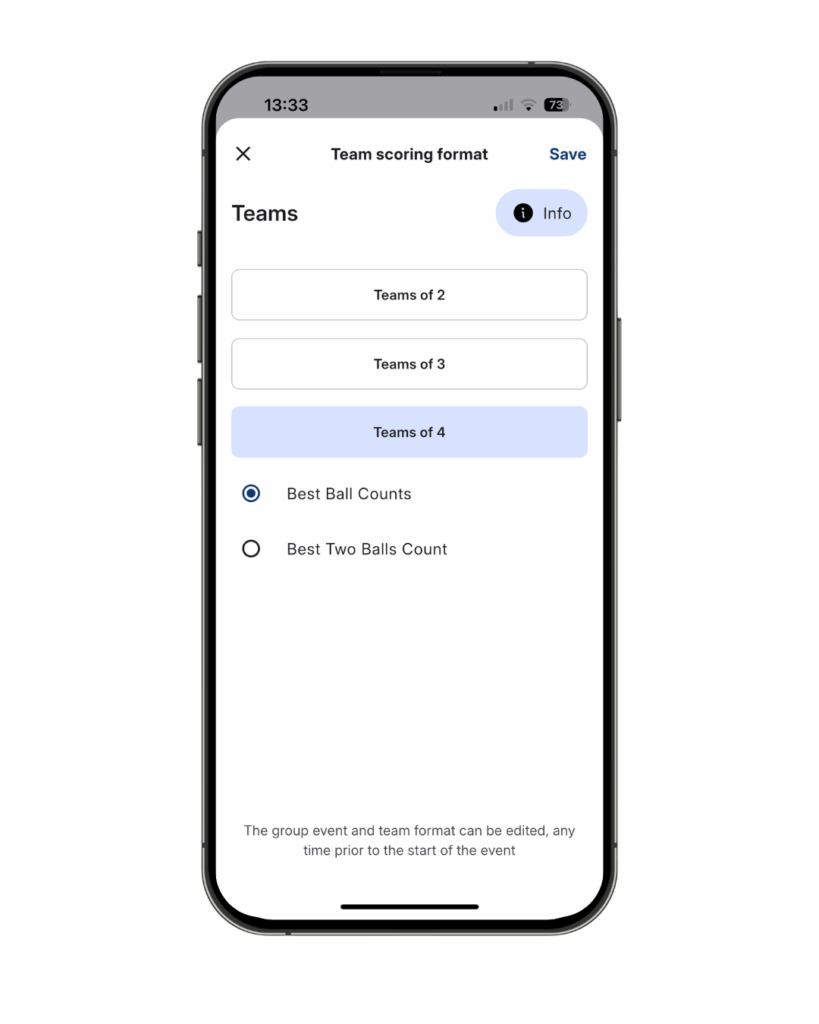
- When on the ‘create event’ screen, toggle the ‘team scoring format‘ button on.
- Select how many players are in each team – two, three or four.
- Select the scoring format for the team – best ball counts or best two balls count (combined).
Please note – when adding additional team scoring formats, you need to ensure one player (marker) enters scores for the entire team and only that specific team (see section below regarding playing partners and scoring). They simply add the players to the scorecard on the day to get started.
What is series scoring in the ParUp Golf app?
Key points to note about series scoring in the ParUp Golf app:
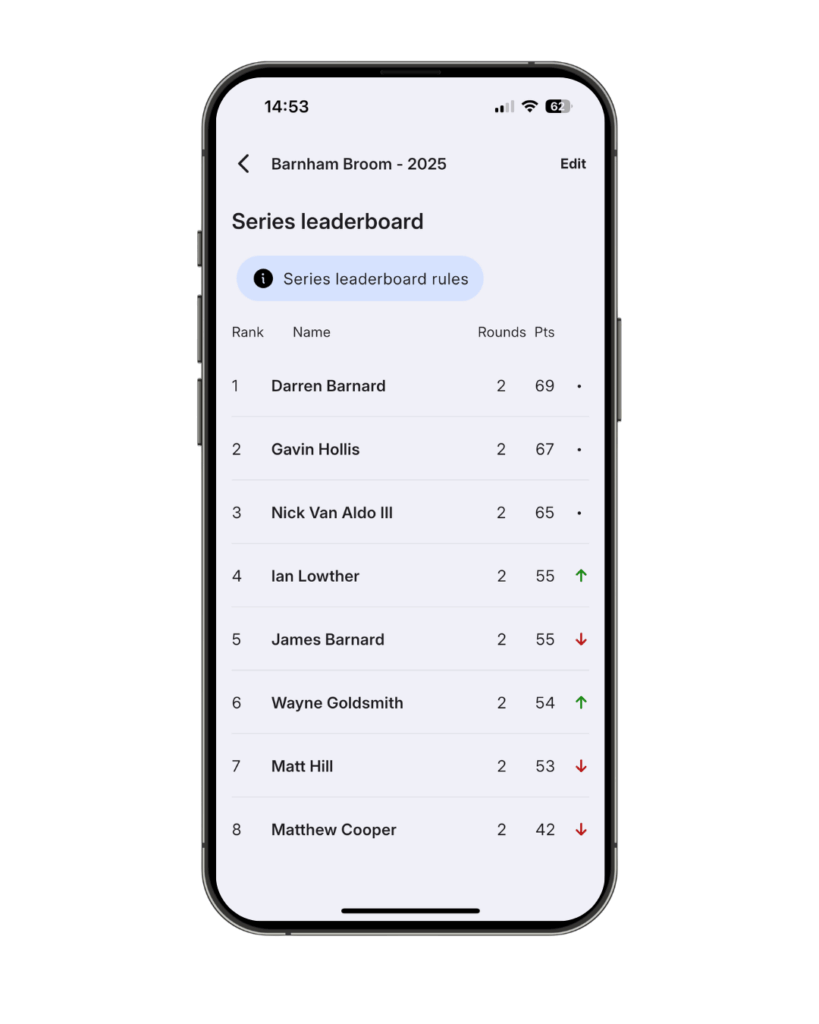
- Series scoring is the ability to create multi-round events (think long weekends away or monthly events that contribute to annual order of merit).
- A new series leaderboard is created, you specify which events contribute to the series and select a preferred scoring format (e.g. could be total cumulative stableford points for a long weekend away and the best 7 events from 12 for an annual order of merit).
How do I add series scoring when creating a new group event in the ParUp Golf app?
These are instructions that the group organiser needs to follow in order to add series scoring to a new group event in the ParUp Golf app:
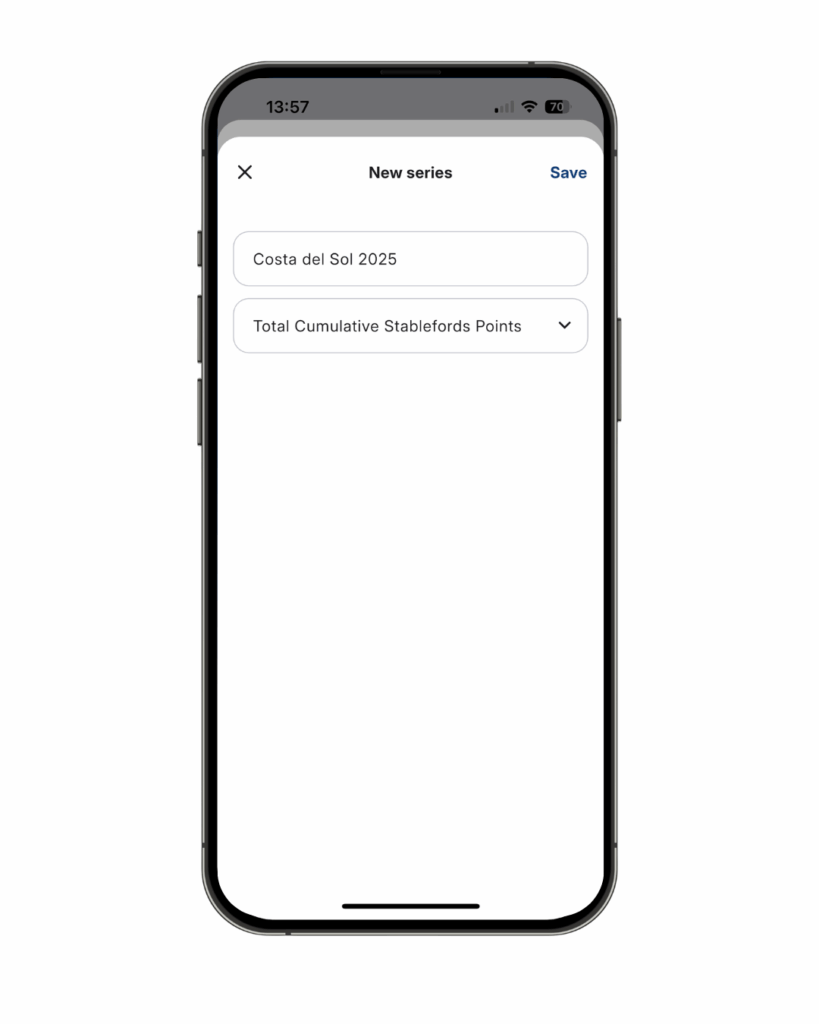
- When on the ‘create event’ screen, toggle the ‘series scoring‘ button on.
- On the ‘choose series’ overlay, tap on ‘+ Add new’.
- Add a series name of your choice and select the preferred scoring option (choosing between the total cumulative or best X number of rounds count).
- Save the new series and then select this new series to be associated with your group event.
- Going forward, other new group events that are created can be added to the same series.
How do I enter additional information for a new group event in the ParUp Golf app?
These are instructions that the group organiser needs to follow in order to enter additional information for a new group event in the ParUp Golf app:
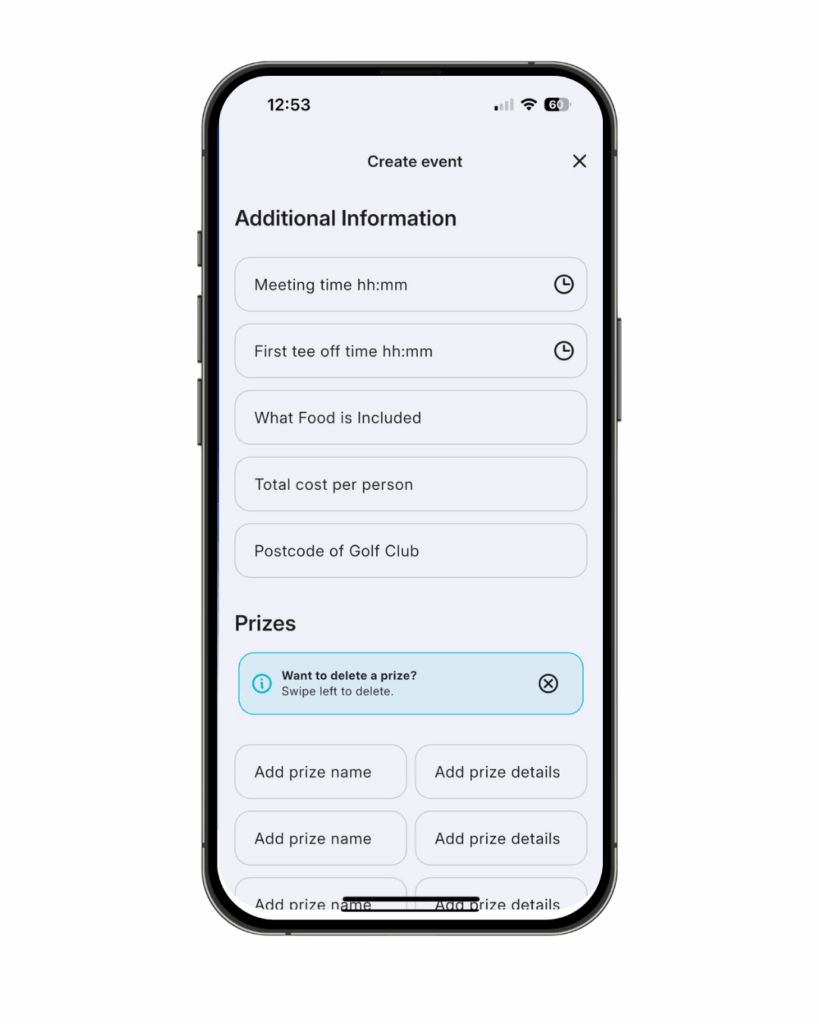
- This is the ability to add key information relating to the group event (e.g. meeting time, cost, prizes, etc).
- There are two ways of doing this:
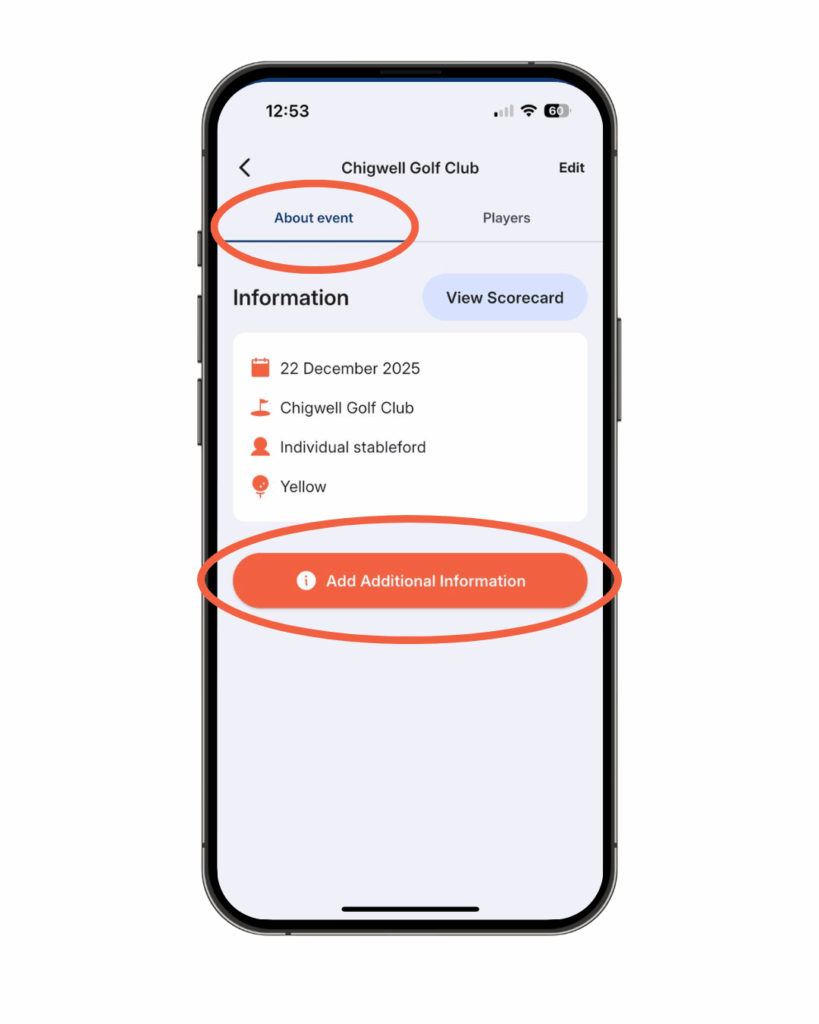
- After creating the event, a pop-up will appear with an ‘add now‘ button.
- Or do this at a later date by tapping the ‘events’ tab within your group, then tapping the specific event you’ll see an orange ‘add additional information‘ button.
- Once on the ‘additional information‘ screen, work through the screen, by entering the relevant information for your event (they are all optional).
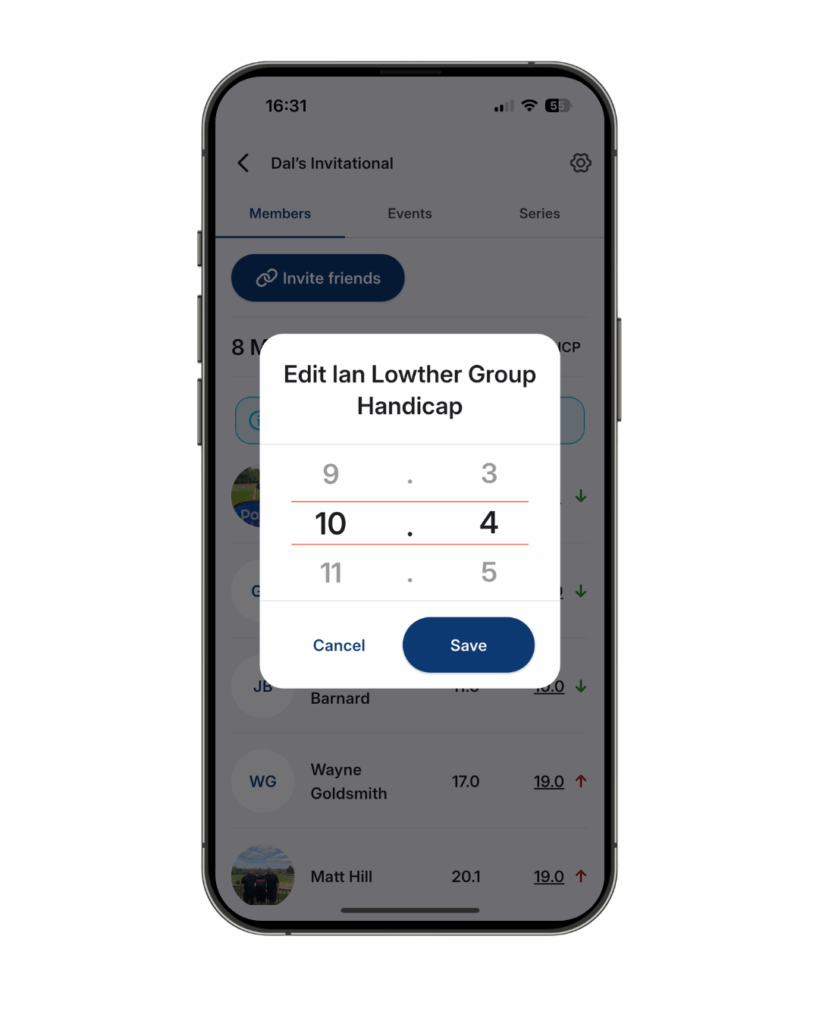
How do I check and update group member handicaps in the ParUp Golf app?
These are instructions that the group organiser needs to follow in order to check and update handicaps for group members in the ParUp Golf app:
- Within your new group, you will default to the ‘members’ tab.
- This shows all members, with their individual ParUp handicap index, plus their group specific handicap (this is the one specific to your group).
- Prior to your next group event, you can update any players group handicap.
- Tap the players group handicap and adjust accordingly via the pop-up.

How do I check the group attendance and payment tracker in the ParUp Golf app?
These are instructions that the group organiser needs to follow in order to start a group event in the ParUp Golf app:
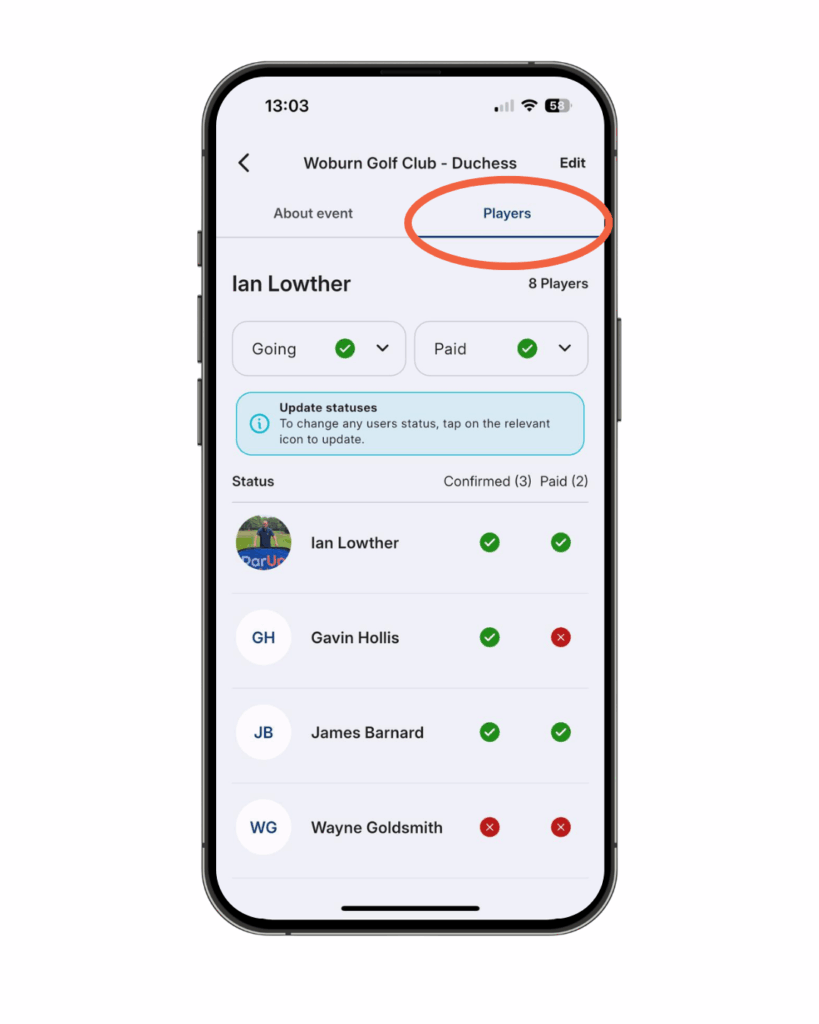
- Within your group screen, tap the ‘events’ tab, followed by the scheduled upcoming event.
- Then tap the ‘players’ tab to reveal the group attendance and payment tracker.
- From the total group members, this shows exactly who has confirmed their attendance and paid.
- A group member simply taps the drop-downs at the top to change their status for each field.
- A visual summary of the attendance tracker is available for all group members to see.
- The group organiser can change the status for any member if necessary (e.g. payment hasn’t been received).
How do I allocate playing partners for a group event in the ParUp Golf app?
These are instructions that the group organiser needs to follow in order to allocate playing partners for a group event in the ParUp Golf app:
You don’t need to set anything up in advance, it’s designed for simplicity and ease of use. This can be done quickly in-person at the golf course. Decide who’s playing with who and then nominate one person per tee-time to be the dedicated marker to enter scores in the app, just like you would if using a paper scorecard. No extra steps needed.
Important point to note – the only exception to the above is when a team scoring format has been added to a group event, in which case, more than one marker per tee-time may be required. For team scoring to work correctly, each marker should only enter scores for themselves and their teammates. For example, when playing in pairs (teams of two) within a fourball, two players in that tee-time will each mark a card, one for each pair. Teammates must always play together in the same tee-time and record their scores on the same card.
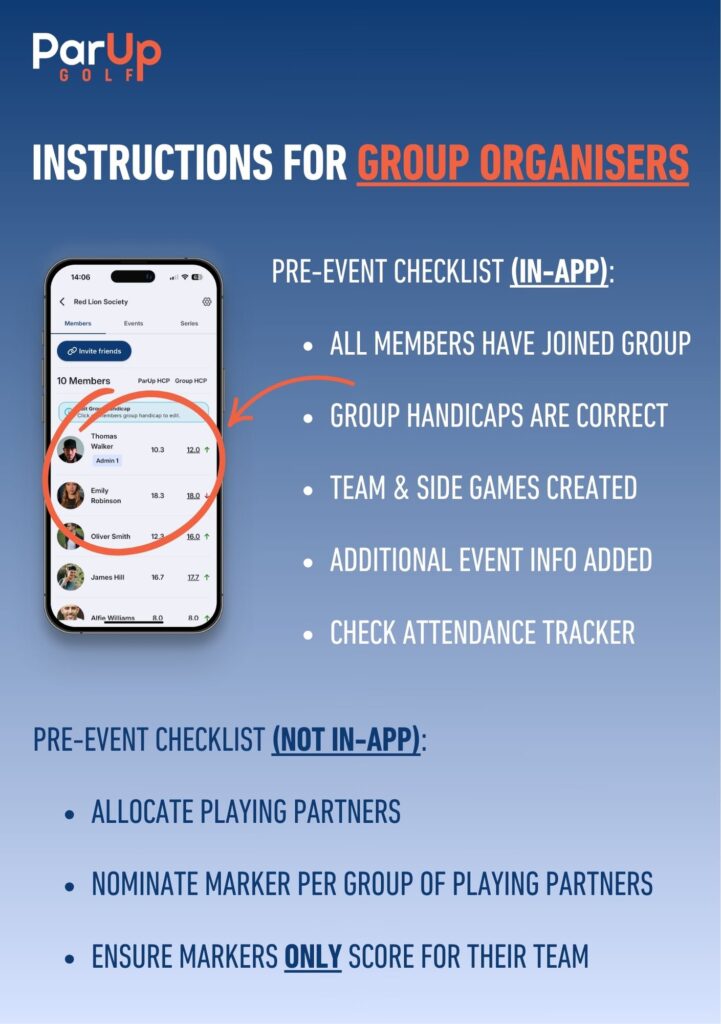
Important pre-event checklist for group organisers:
Other important points to note:
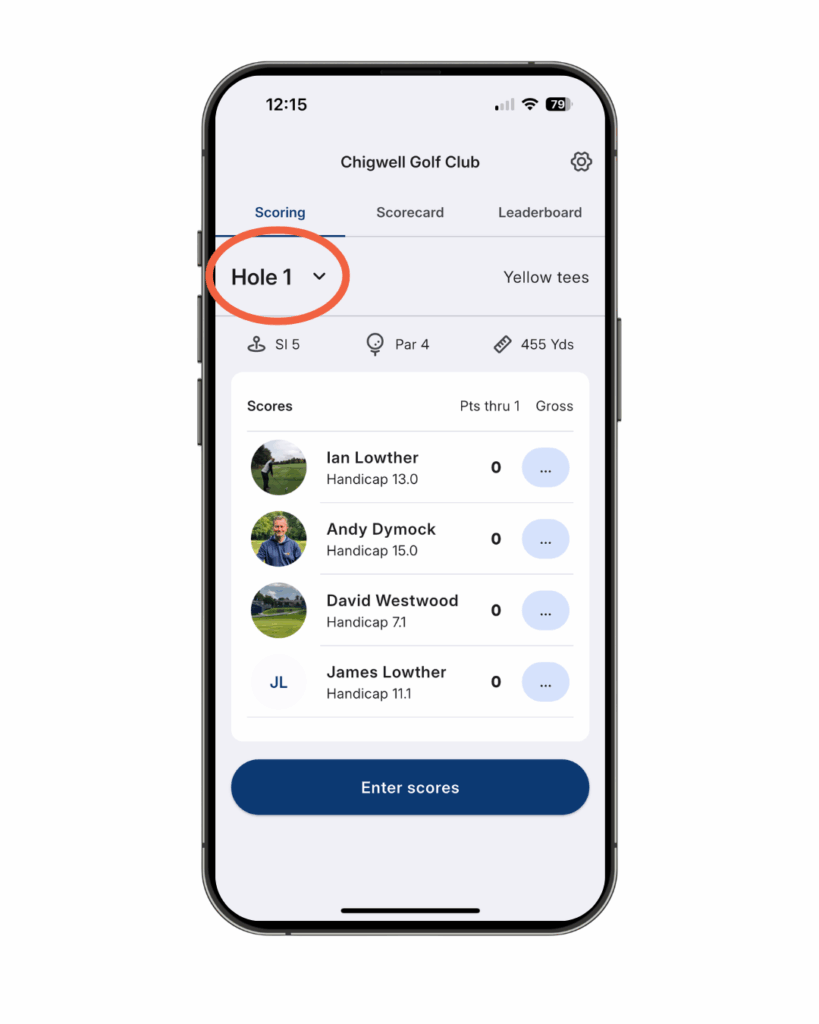
- For those playing a shotgun start, remember to change the hole number before starting to enter scores.
How do I start a group event in the ParUp Golf app?
These are instructions that the group organiser needs to follow in order to start a group event in the ParUp Golf app:
Does it start at the time set for first tee-time?
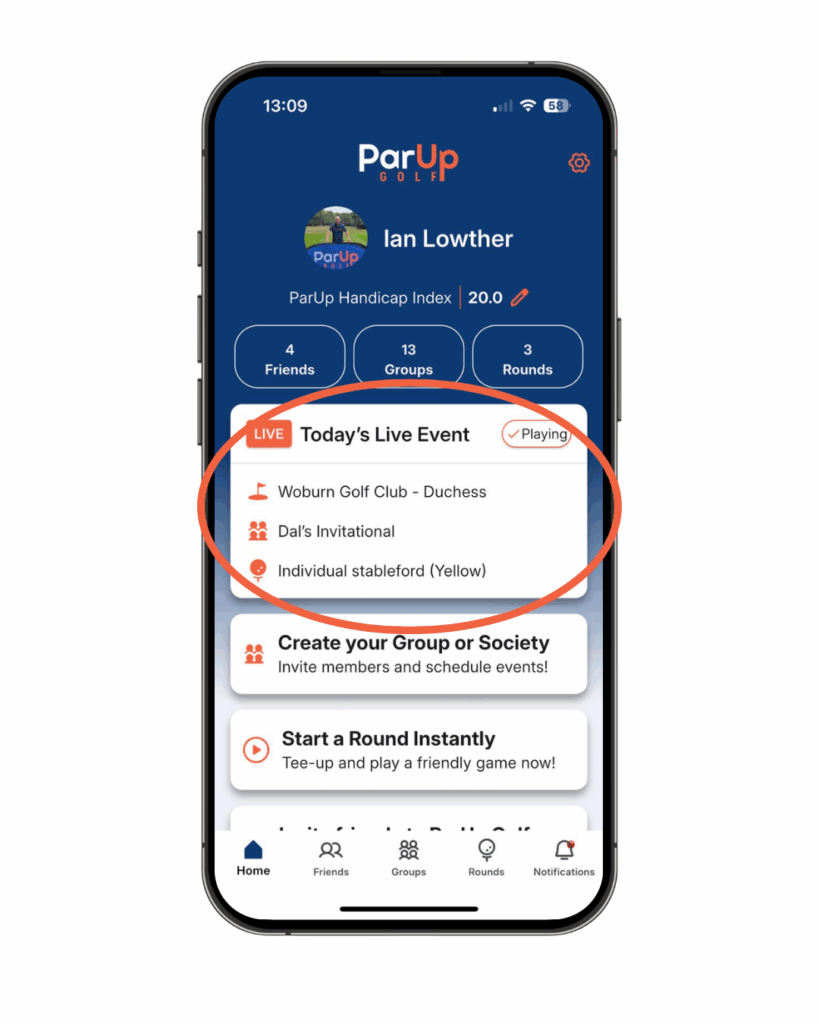
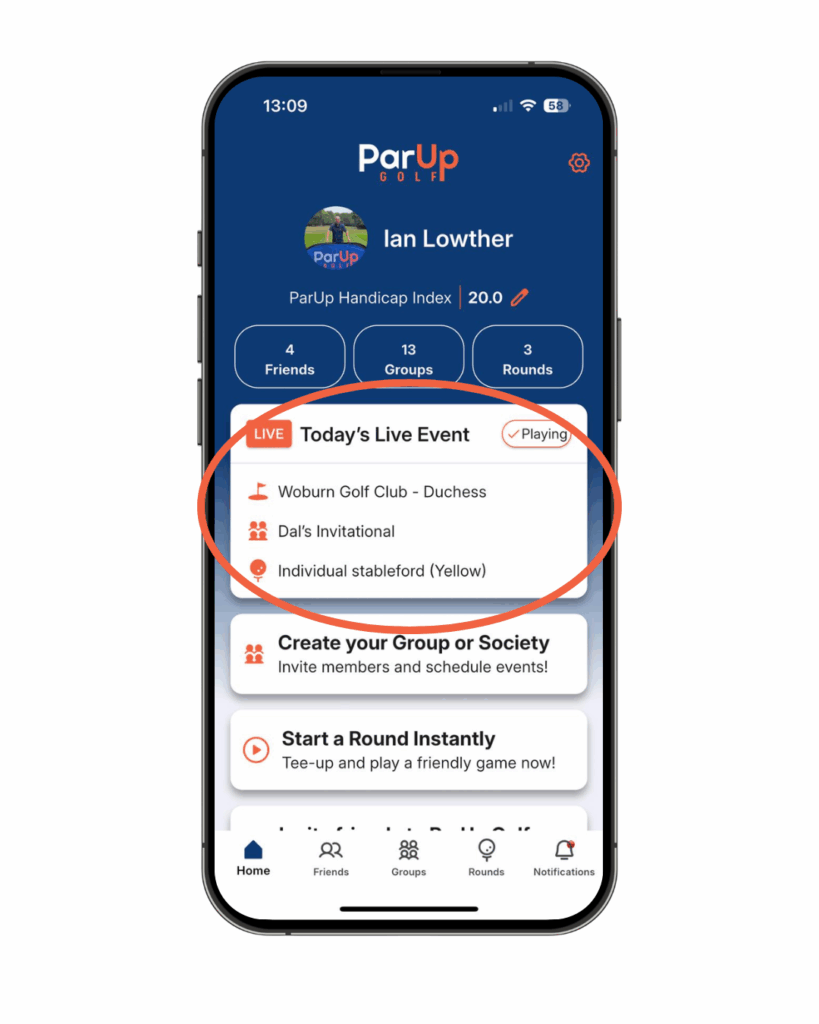
- On the day of the scheduled event, ‘Today’s Live Event’ banner will appear on the home screen.
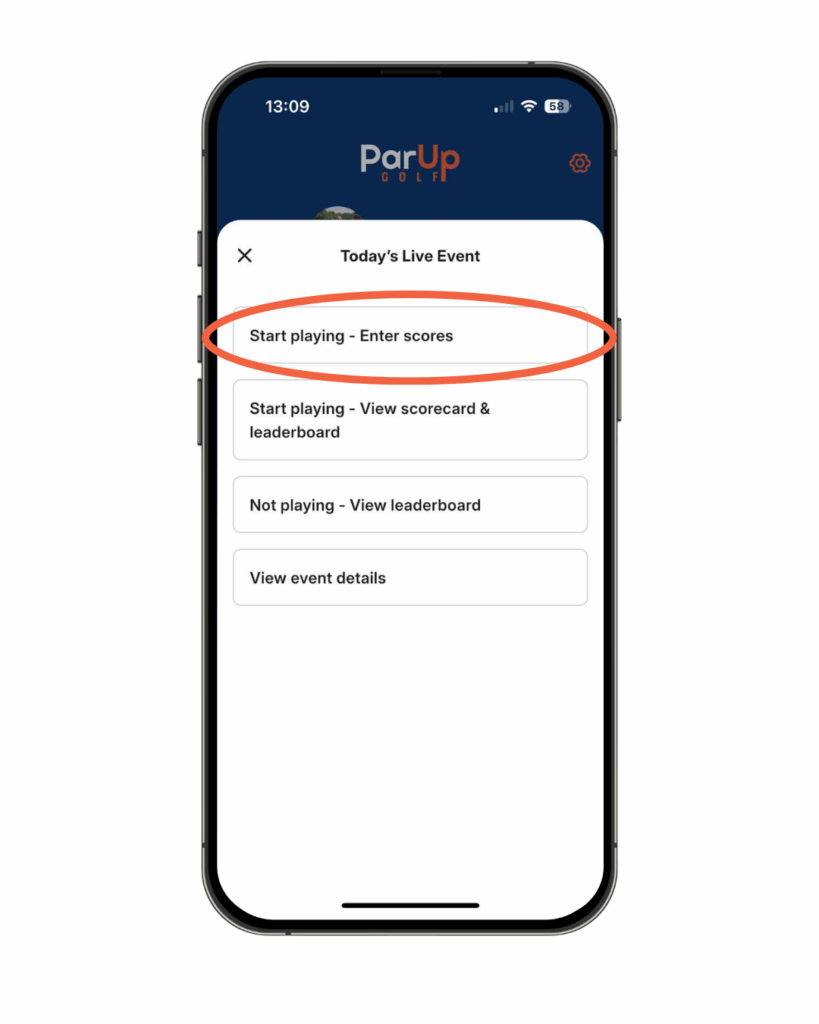
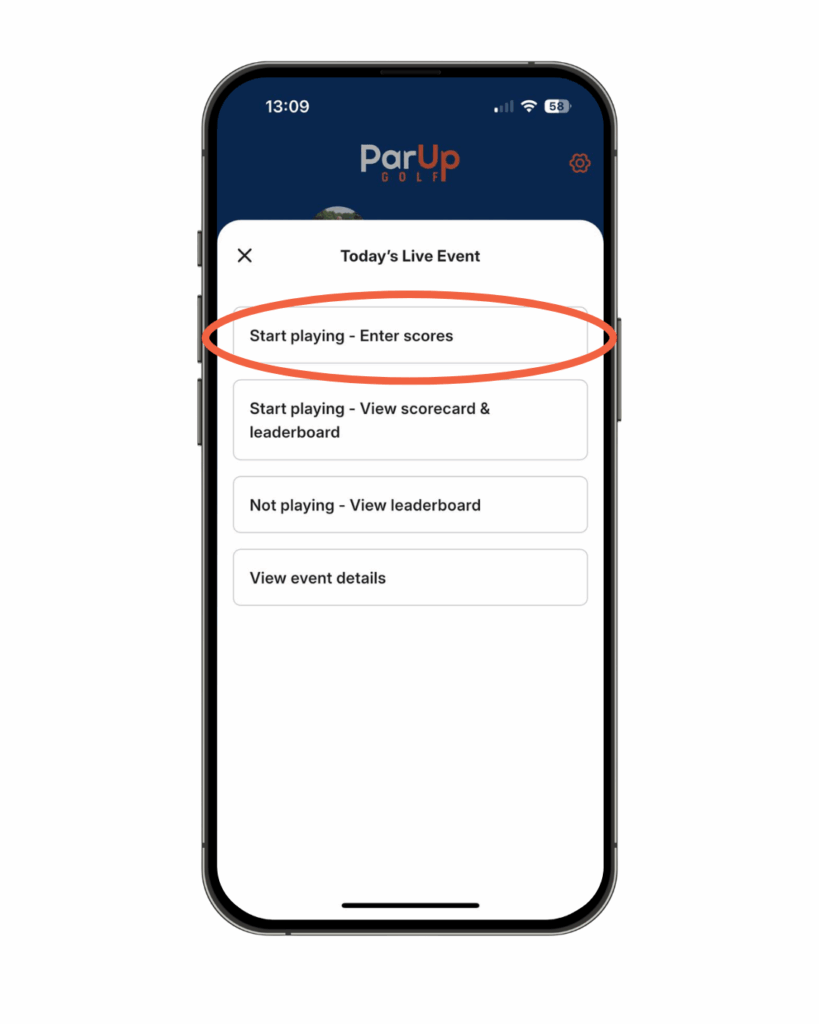
- Tap this banner and select the ‘Start playing – Enter scores’ button.
- Tap on the + icon to add playing partners (those you will be entering scores for).
How do I play a group event (enter scores) in the ParUp Golf app?
These are instructions that group members who are marking scorecards need to follow in order to play a group event (enter scores) in the ParUp Golf app:
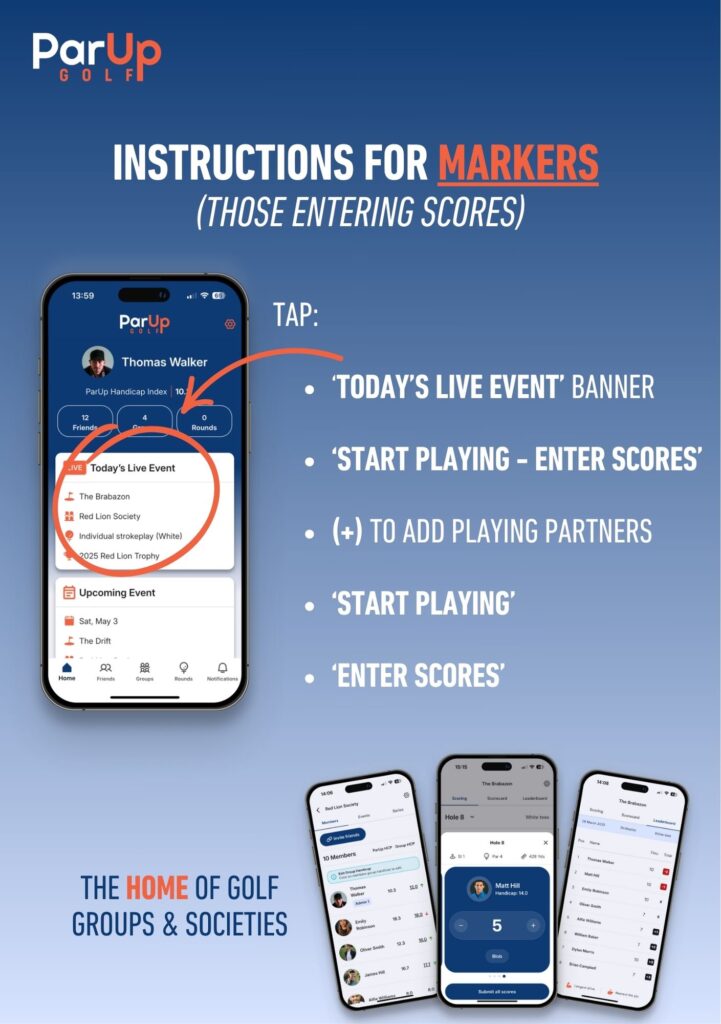
- On the day of the scheduled event, ‘Today’s Live Event’ banner will appear on the home screen.
- Tap this banner and select the ‘Start playing – Enter scores’ button.
- Tap on the + icon to add playing partners (those you will be scoring for).
Instructions for markers (those players marking the card and entering scores):
How do I play a group event (view scores) in the ParUp Golf app?
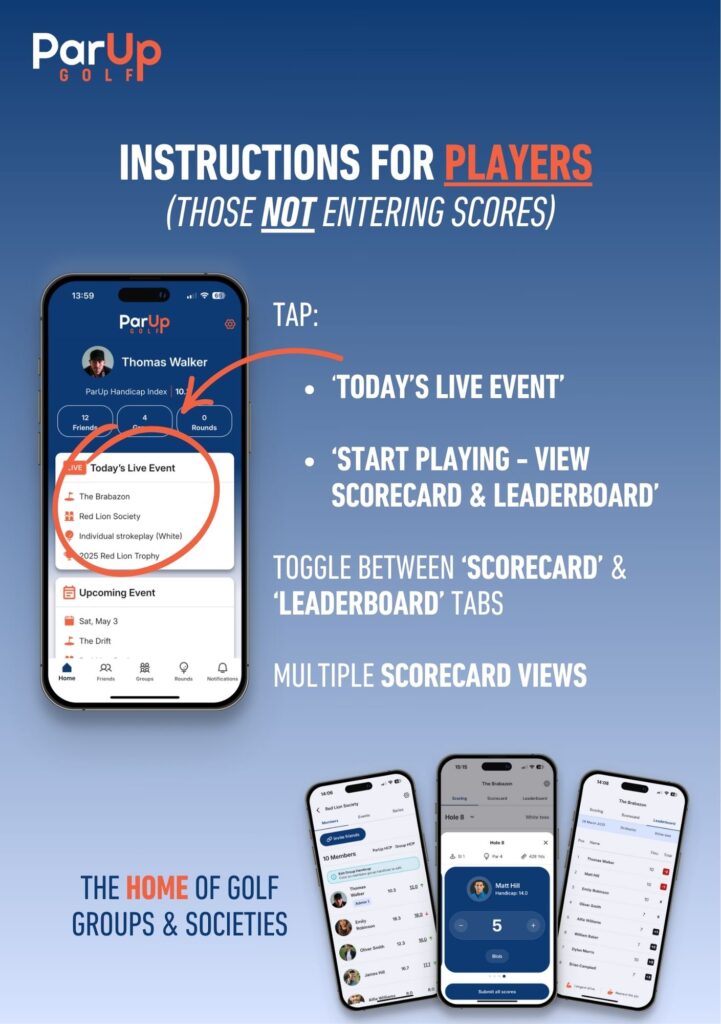
These are instructions that group members who are NOT marking scorecards need to follow in order to play a group event (view scores) in the ParUp Golf app:
- On the day of the scheduled event, ‘Today’s Live Event’ banner will appear on the home screen.
- Tap this banner and select the ‘Start playing – Enter scores’ button.
- Tap on the + icon to add playing partners (those you will be scoring for).
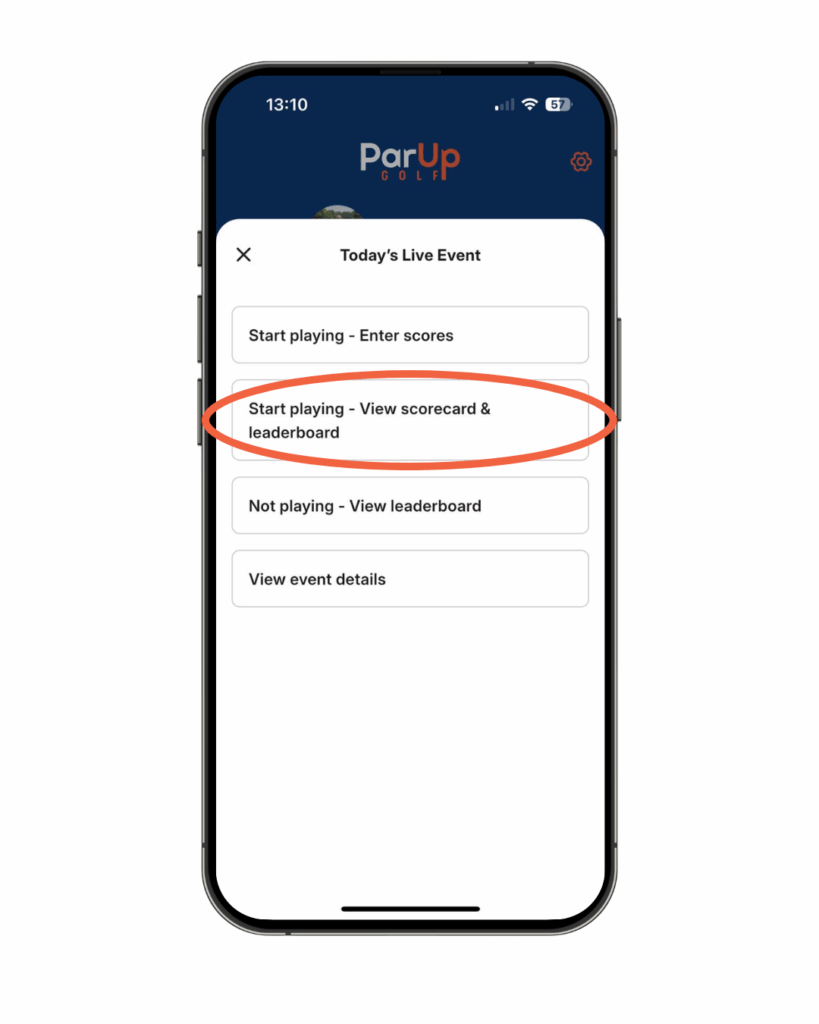
Instructions for all other players (non-markers, those players not marking the card and entering scores):
How do I enter nearest the pin in the ParUp Golf app, during a round?
These are instructions that the group organiser needs to follow in order to start a group event in the ParUp Golf app:
- The organiser will have already selected the relevant hole(s) when creating the event.
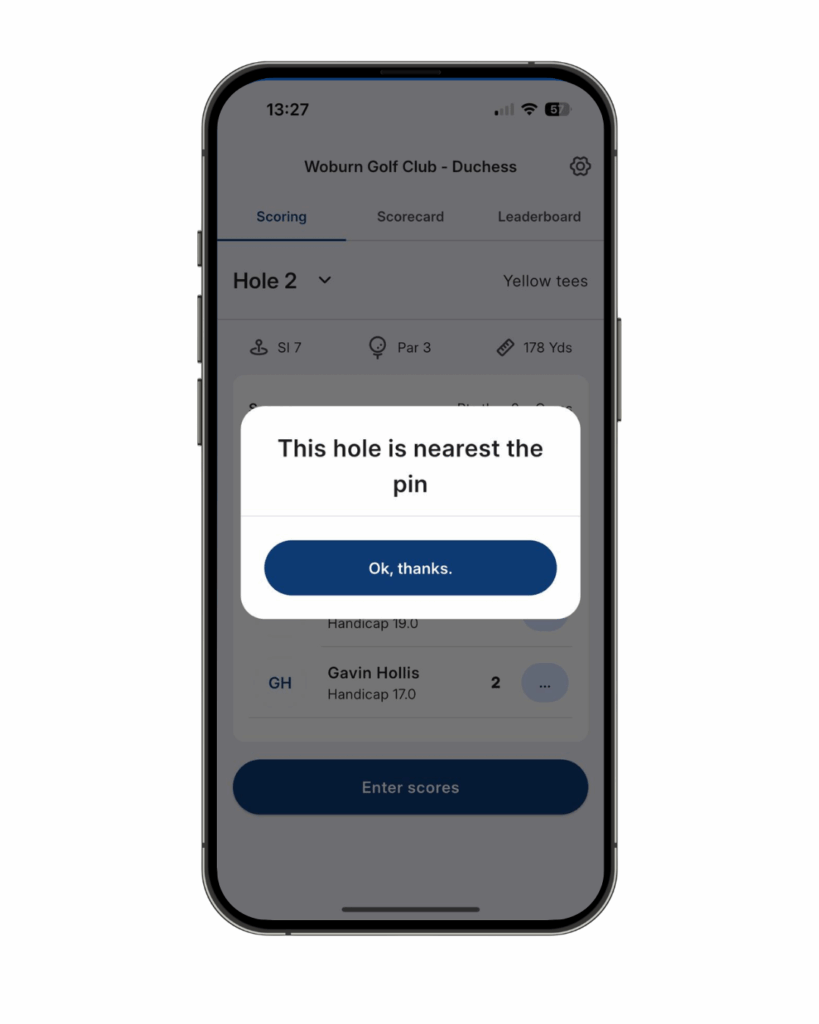
- While entering scores, a pop-up message will appear, stating the next hole is ‘nearest the pin’.
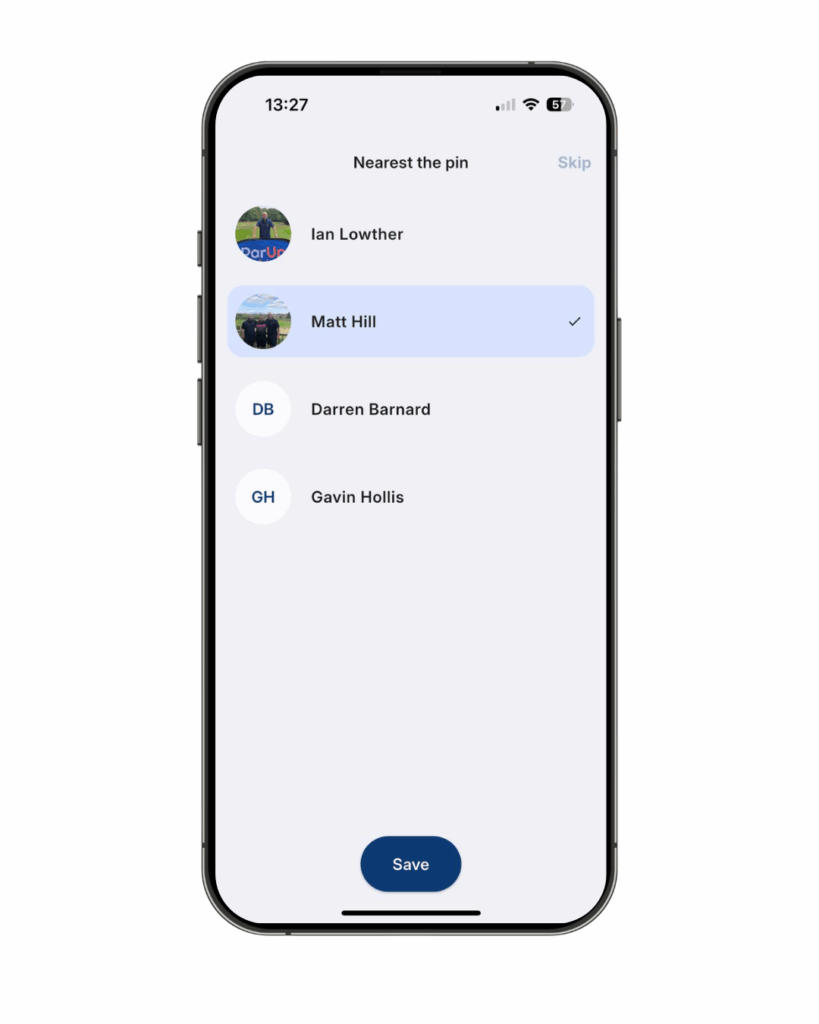
- If the marker or one of their playing partners hits their ball closest to the pin, they simply select their name from the list on screen and tap save. They also move the physical marker on the green.
- If nobody hits their ball inside the physical marker on the green, then the marker simply taps ‘skip’ in the top right corner to revert back to scoring, without having to select a player.
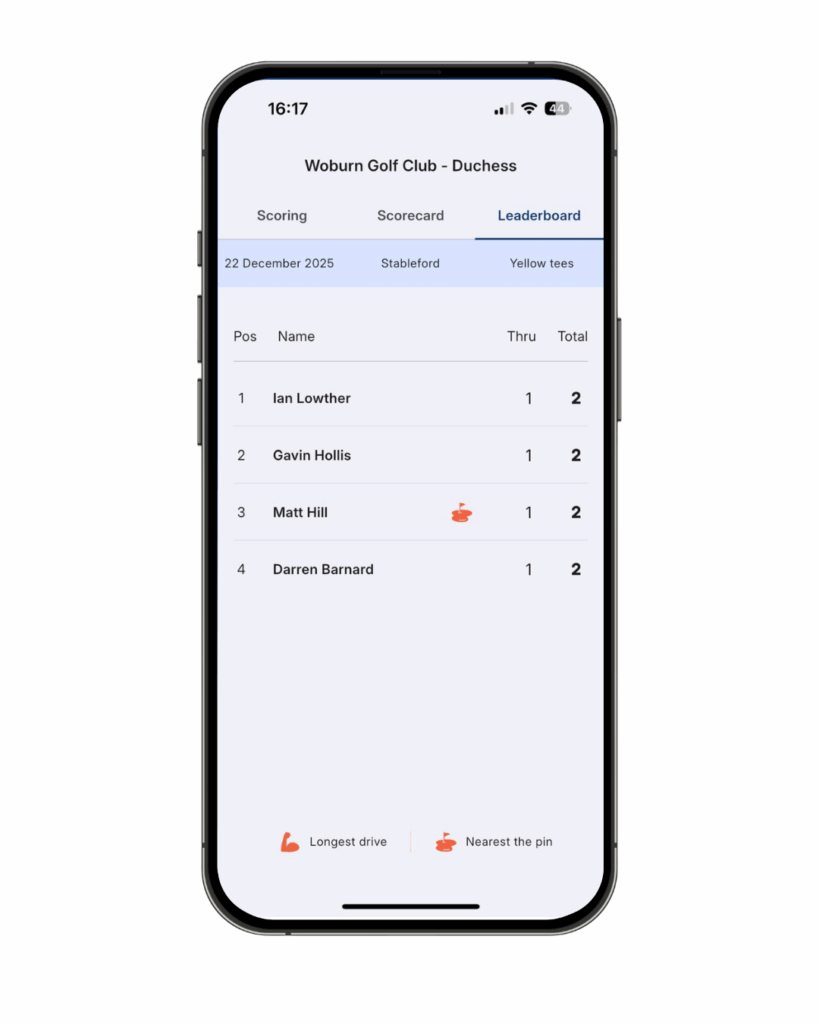
- The ‘big arm’ emoji will then appear next to this player’s name on the leaderboard. The player who finishes the event with the emoji is the winner of ‘nearest the pin’.
How do I enter longest drive in the ParUp Golf app, during a round?
These are instructions that the group organiser needs to follow in order to start a group event in the ParUp Golf app:
- The organiser will have already selected the relevant hole(s) when creating the event.
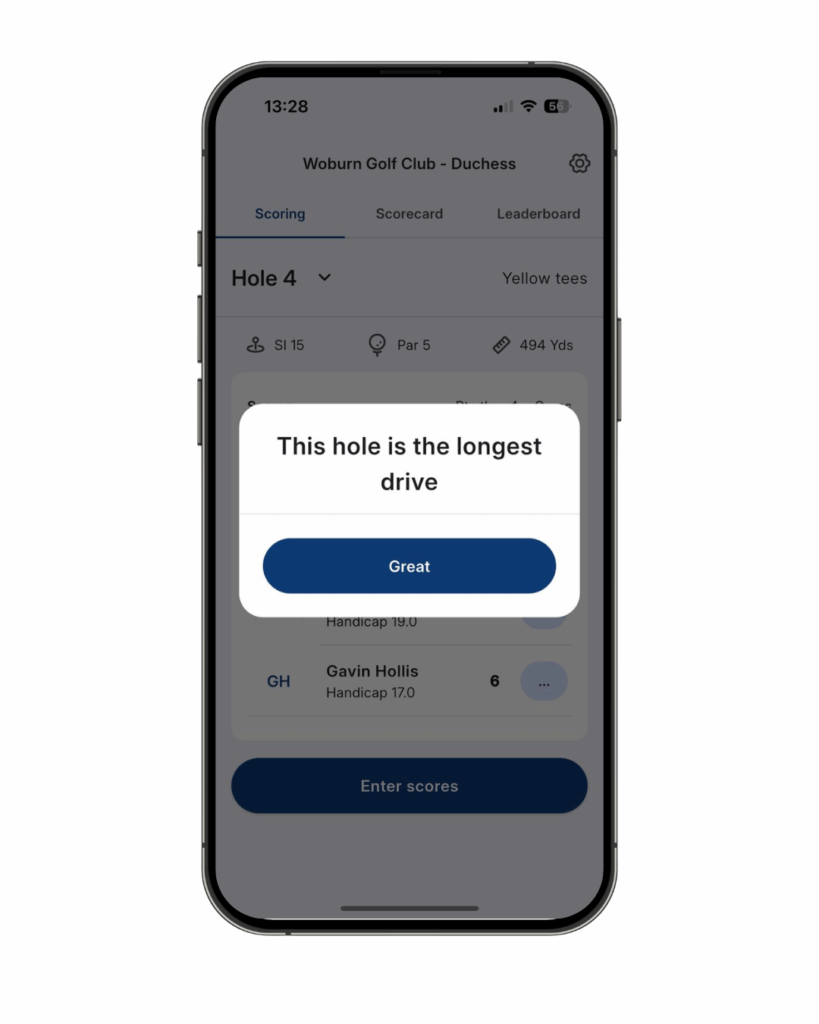
- While entering scores, a pop-up message will appear, stating the next hole is ‘longest drive’.
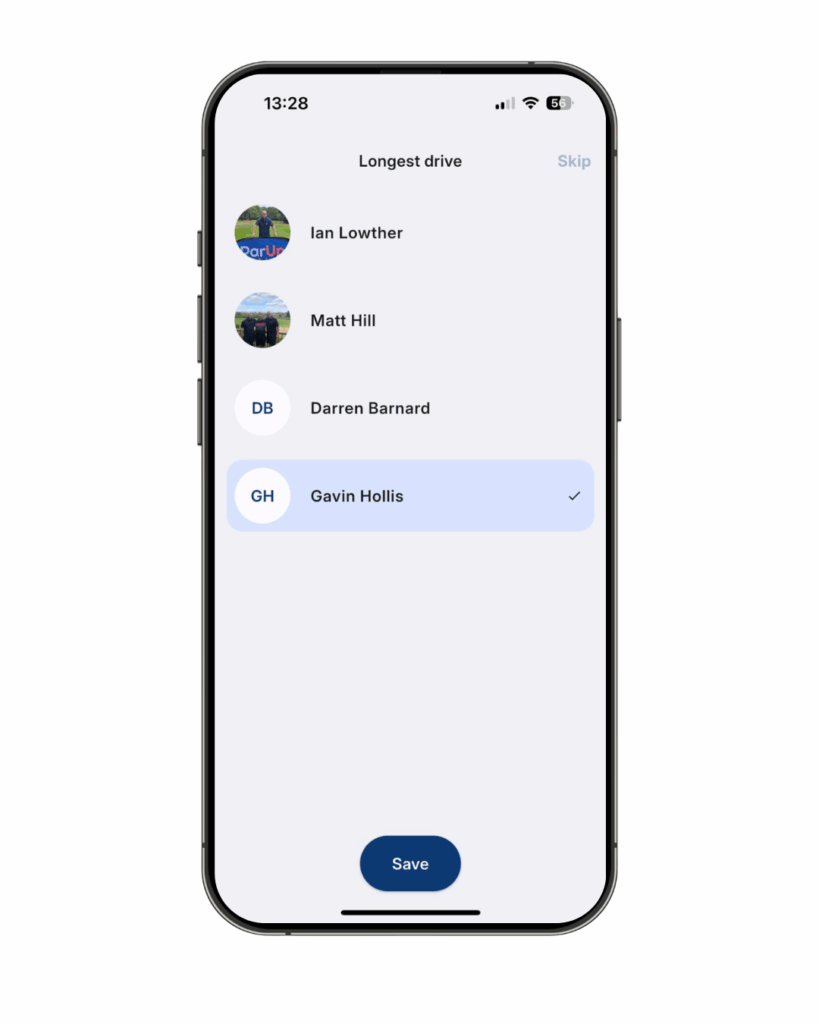
- If the marker or one of their playing partners hits their ball the furthest, they simply select their name from the list on screen and tap save. They also move the physical marker on the fairway.
- If nobody hits their ball beyond the physical marker on the fairway, then the marker simply taps ‘skip’ in the top right corner to revert back to scoring, without having to select a player.
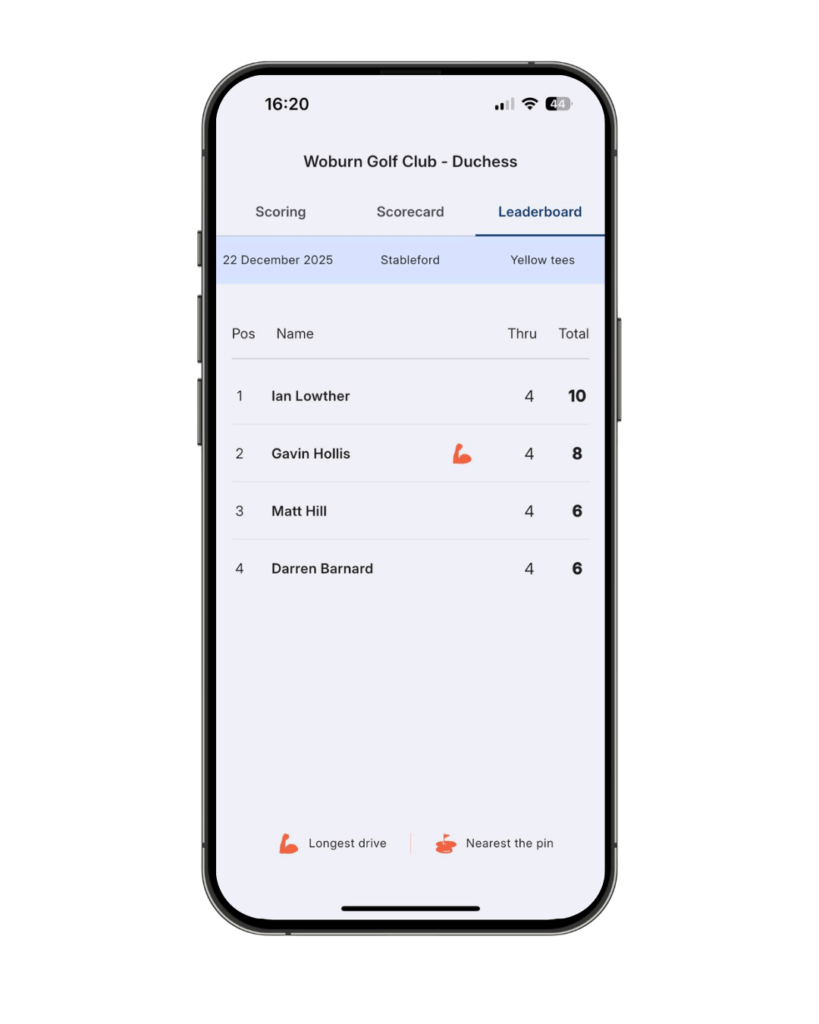
- The ‘big arm’ emoji will then appear next to this player’s name on the leaderboard. The player who finishes the event with the emoji is the winner of ‘longest drive’.
How do I play a round, which is less than 18 holes in the ParUp Golf app?
These are instructions that the group organiser needs to follow in order to start a group event in the ParUp Golf app:
- You can play any number of holes you wish – 9, 18 or whatever the most convenient loop is at your home golf course.
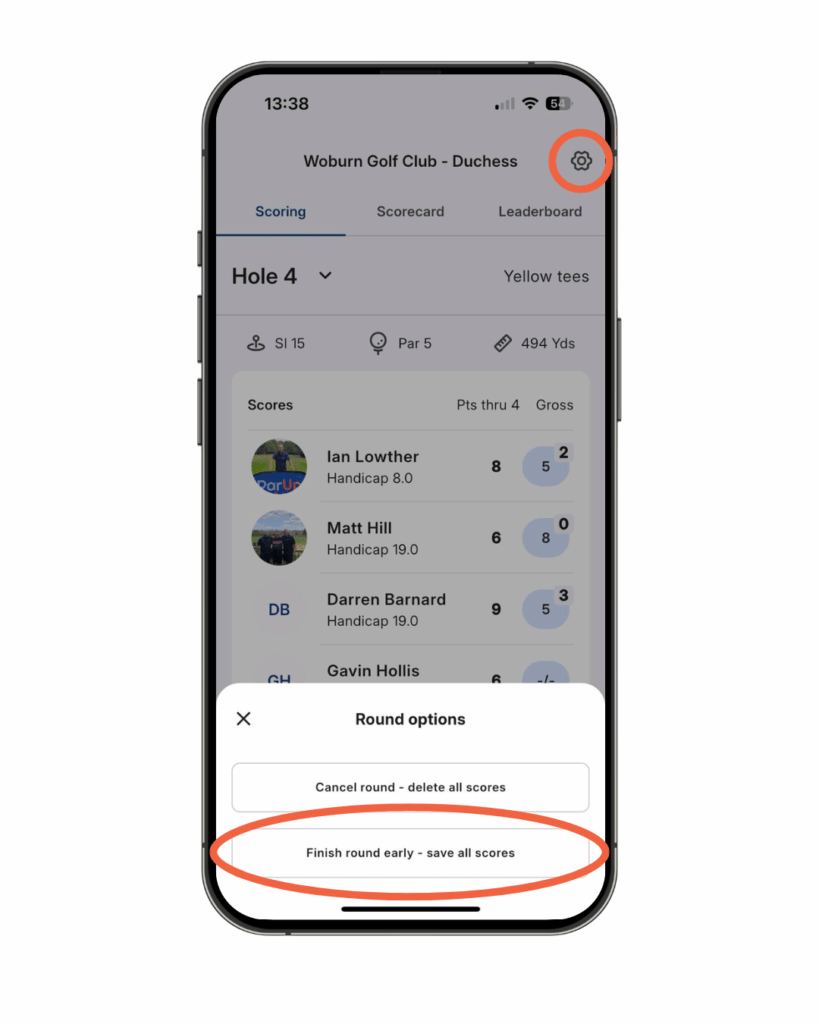
- Create the event as normal (which defaults to 18 holes) and then simply just tap the ‘cog’ icon in the top right hand corner of the screen when you are finished.
- Tap the ‘finish round early – save all scores’ option from the overlay.
- You will get a pop-up asking you to confirm. Your scores will then be saved to your profile.
- You can also skip holes (not enter a score) if playing a loop of holes outside the standard front or back 9.
How do I cancel a round, once I have already started scoring in the ParUp Golf app?
These are instructions that the group organiser needs to follow in order to start a group event in the ParUp Golf app:
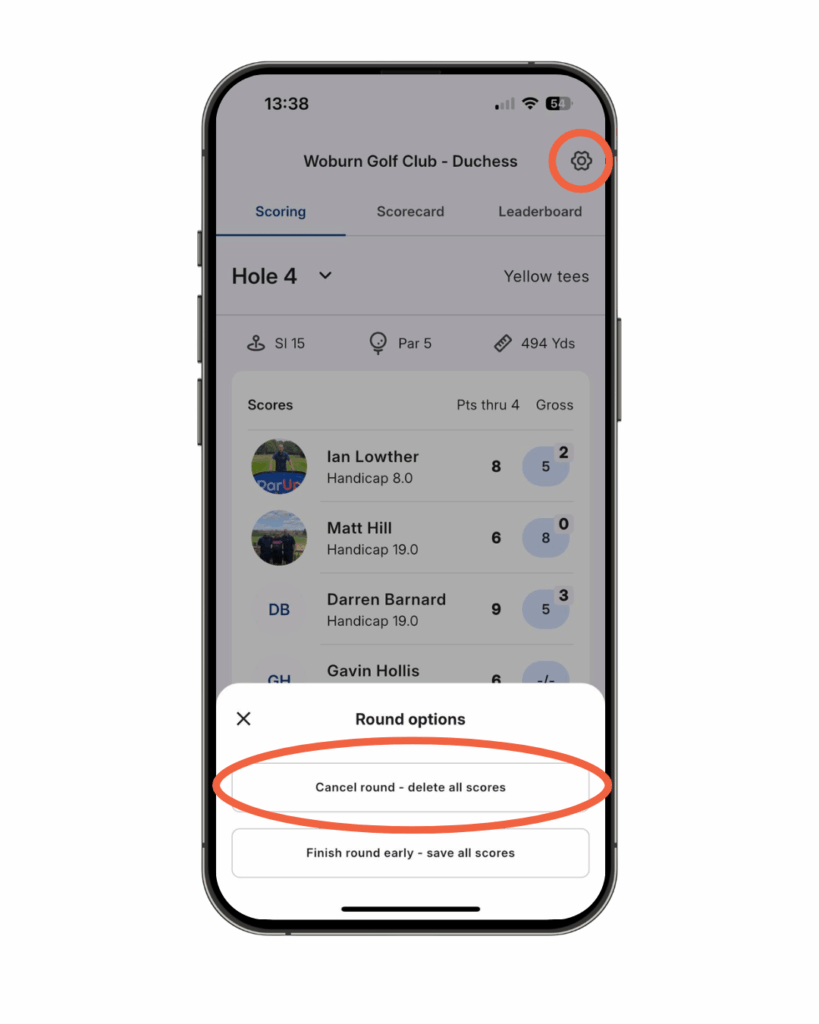
- You can cancel the scoring of a round at any time, without any scores being saved to your profile.
- Simply tap the ‘cog’ icon in the top right hand corner of the screen for ’round options’.
- Tap the ‘cancel round – delete all scores’ option from the overlay.
- You will get a pop-up asking you to confirm. Your round will then be successfully cancelled.
How do I add friends in the ParUp Golf app?
These are instructions that the group organiser needs to follow in order to start a group event in the ParUp Golf app:
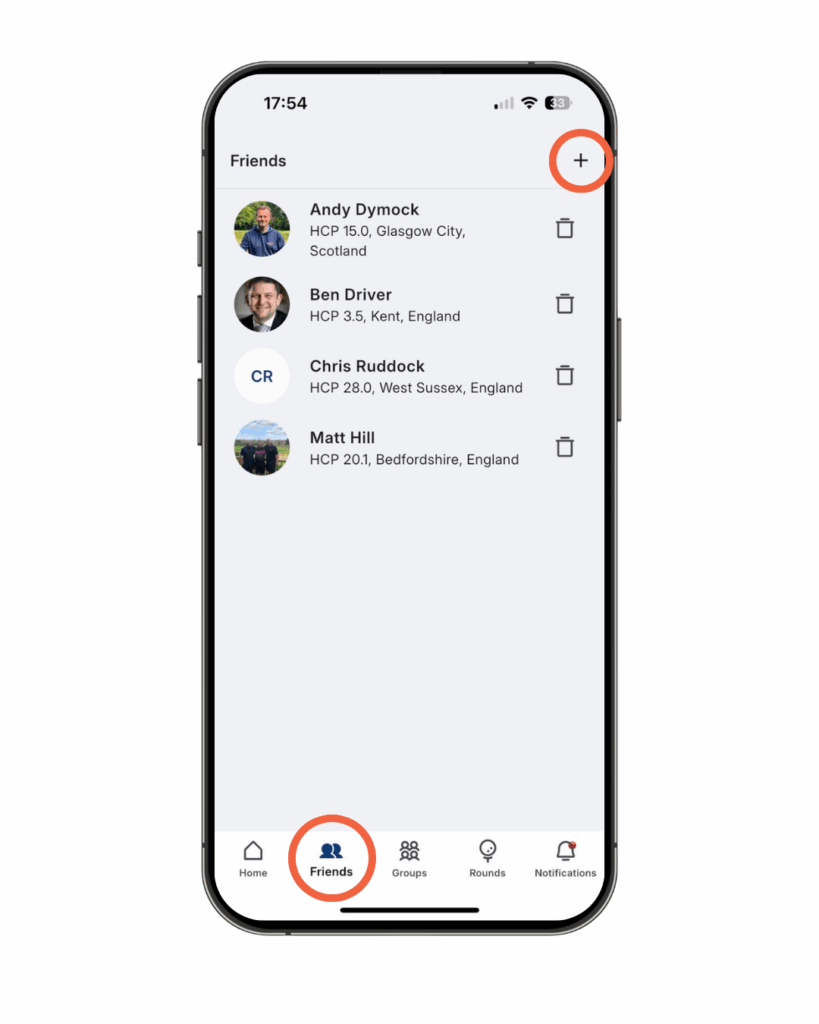
- You need to connect with friends in order to play friendly rounds (outside of group events).
- Tap ‘friends’ in the bottom navigation.
- Tap the ‘+’ symbol to add friends.
- A list of ‘suggested friends’ will appear if you are a member of a group.
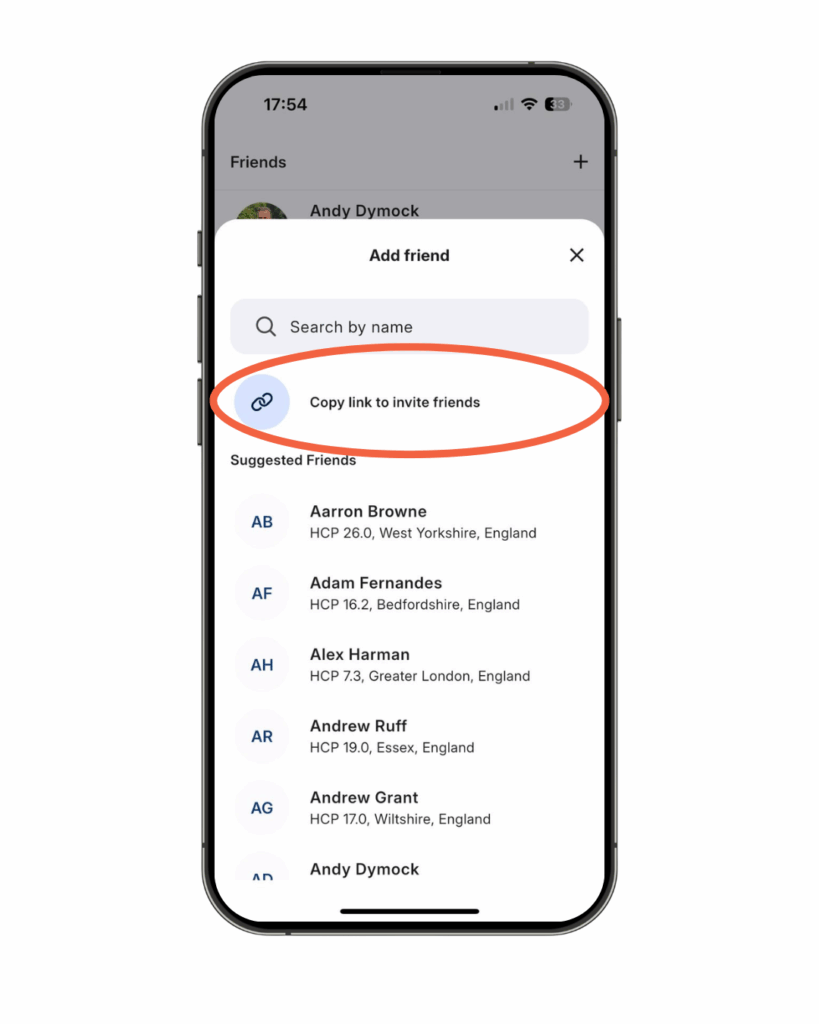
- You will also have the option to tap the ‘copy link to invite friends’.
- Copy this link and share with friends via your preferred channel.
- If you receive any friend requests, the invitation will appear at the top of the ‘friends’ screen for you to accept or decline.
How do I play a friendly round of golf (outside of my group) in the ParUp Golf app?
These are instructions that the group organiser needs to follow in order to start a group event in the ParUp Golf app:
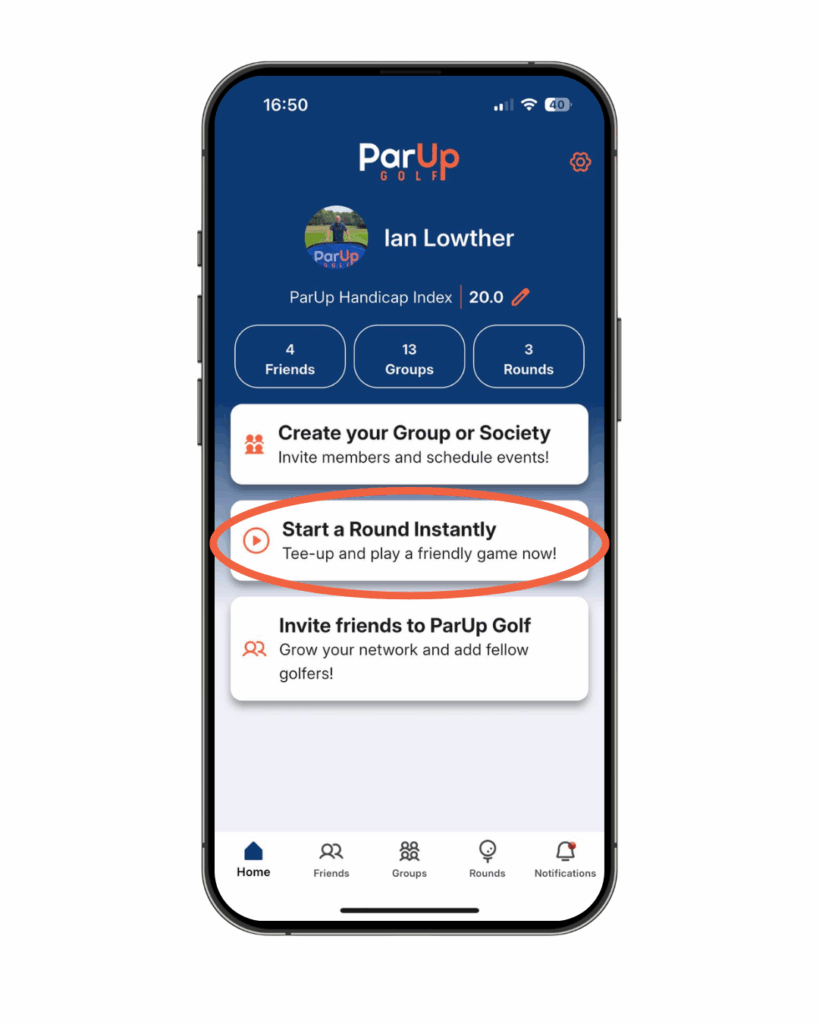
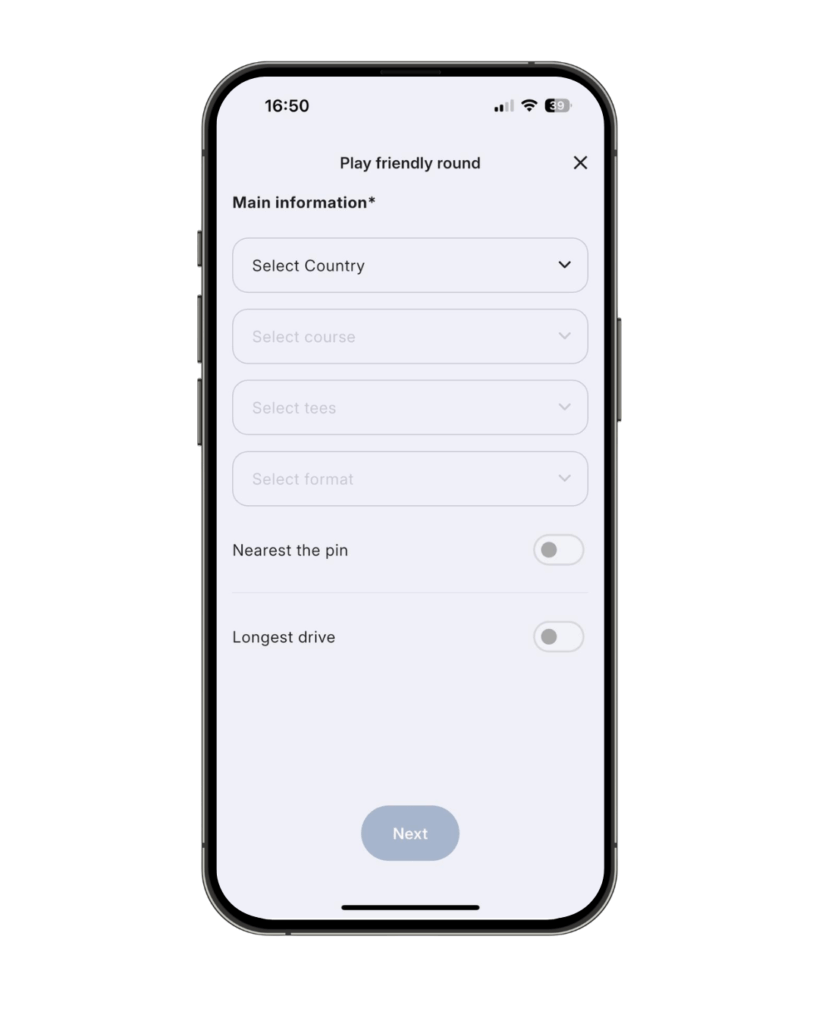
- Tap the ‘start a round instantly’ banner on the home screen.
- Enter key information from the drop-down menus (e.g. country, course, tees, playing format).
- Then select if you want to add nearest the pin and/or longest drive (they are both optional).
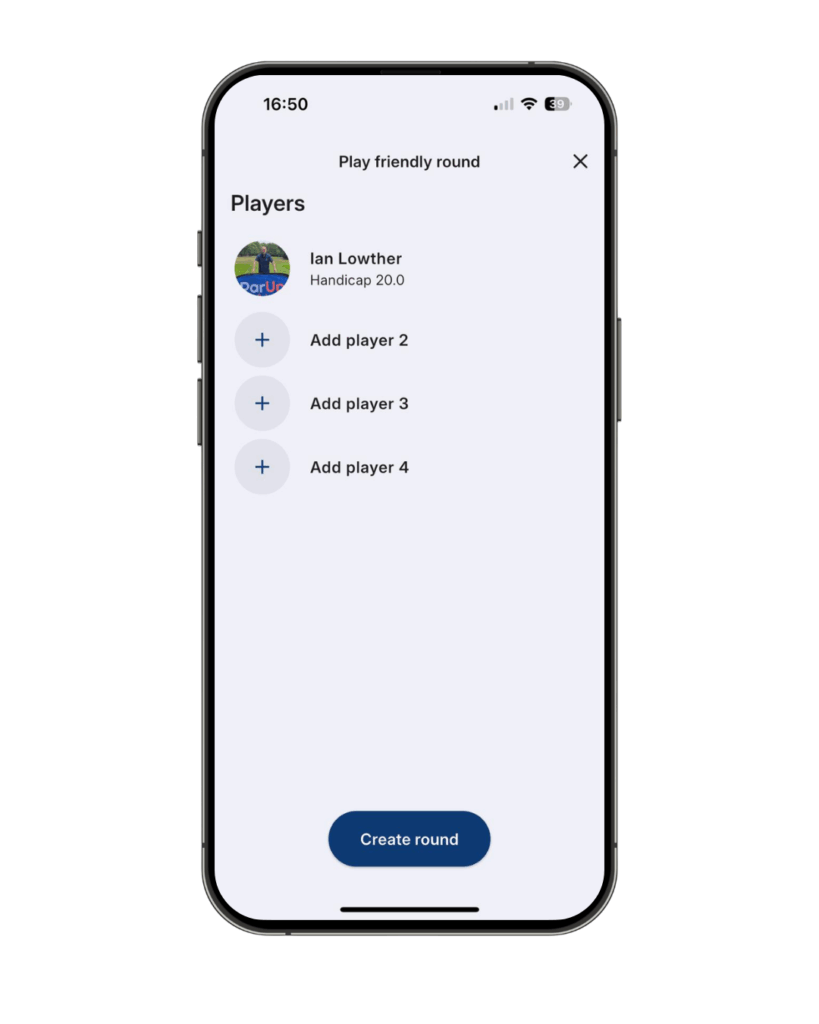
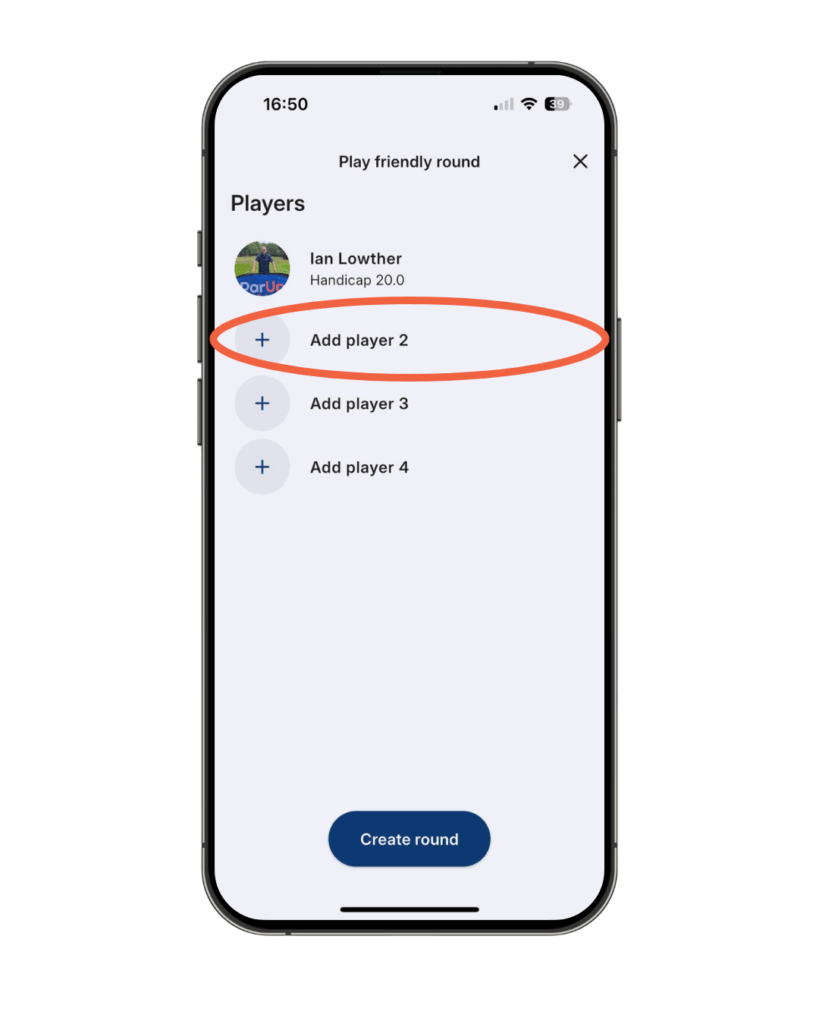
- The final stage is to add players, which will then load the scorecard (you can only add existing friends to a ‘friendly round’ scorecard).
- The digital scoring then works in exactly the same way as it does for group events.
How do I add guest players (non-app users) in the ParUp Golf app?
These are instructions that the group organiser needs to follow in order to start a group event in the ParUp Golf app:
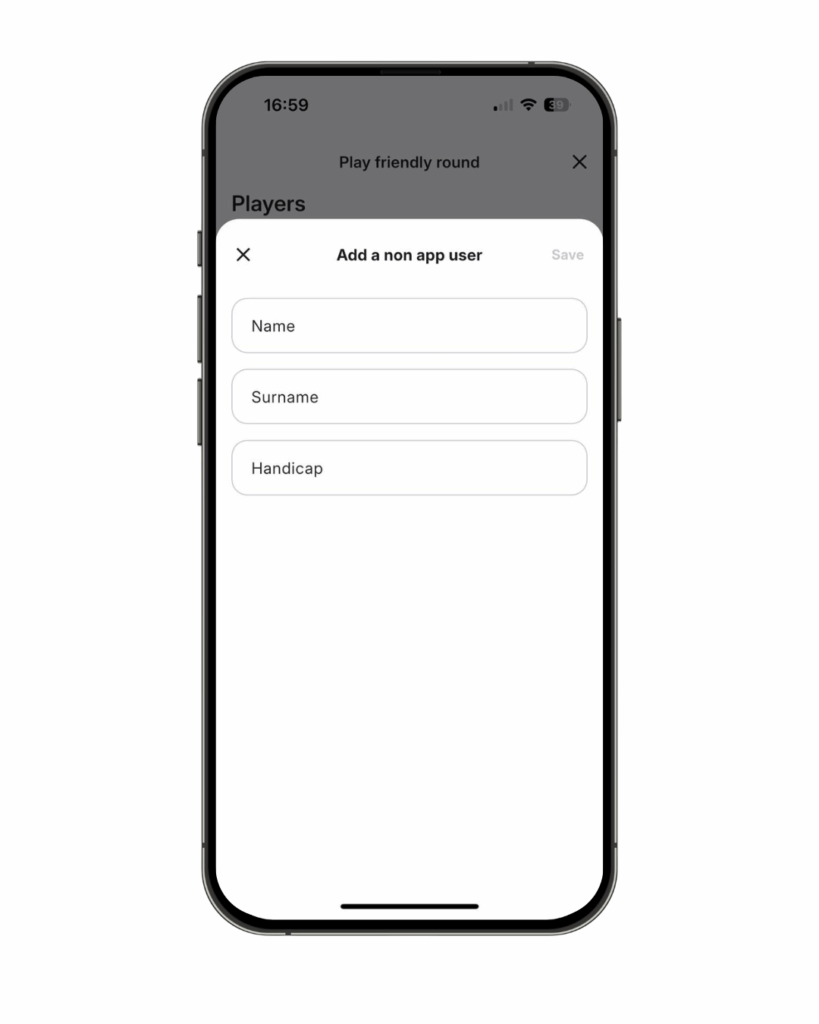
You can currently only add non-app users to friendly rounds. For group events, the group organiser needs to encourage all group members to download the app and register prior to the first event (it’s a very quick process!).
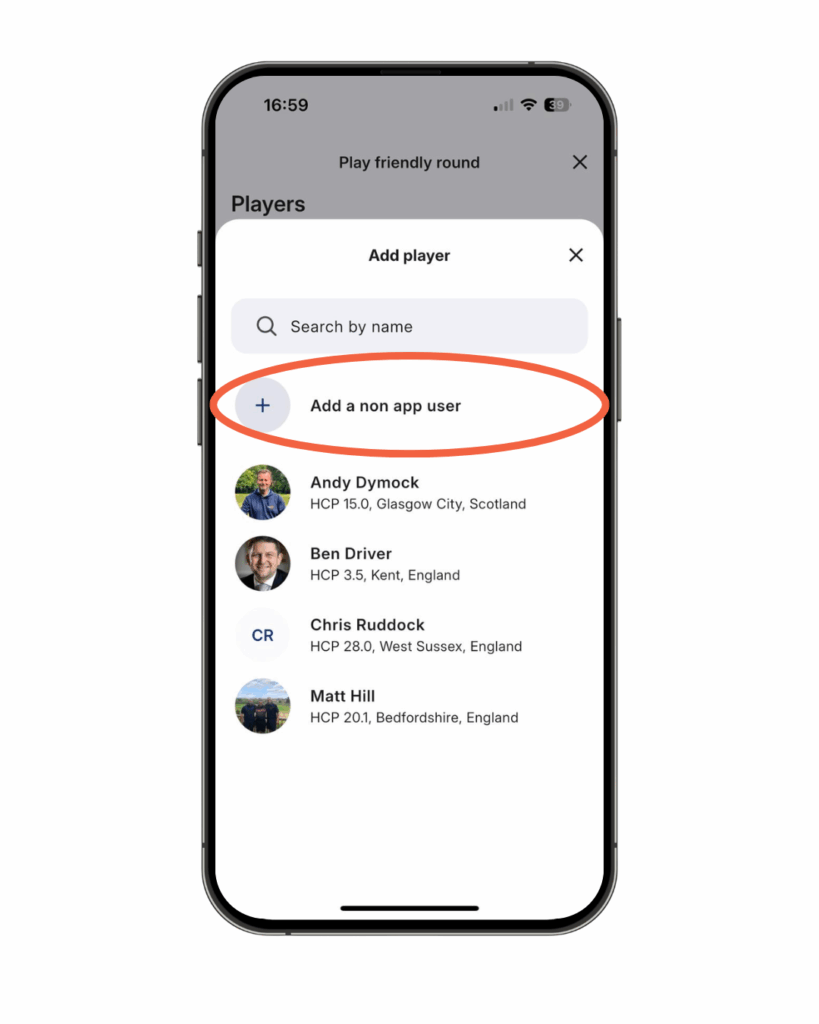
- When starting a friendly round and on the ‘add player’ screen, tap ‘add a non app user’.
- Enter first name, surname and handicap.
- Save the non-app user and tap ‘create round’ to start scoring.
What is a ‘group admin’ user and how are they added in the ParUp Golf app?
These are instructions that the group organiser needs to follow in order to start a group event in the ParUp Golf app:
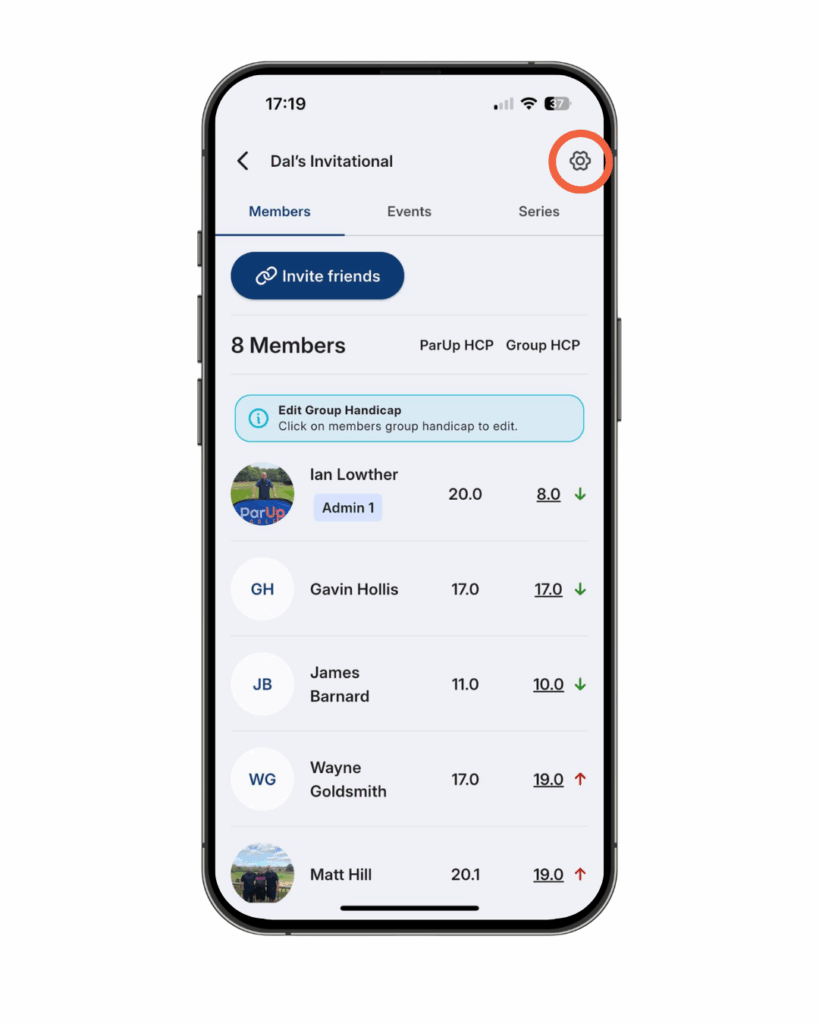
- A group organiser can add extra ‘group admin’ users to help share the responsibilities.
- A group admin is able to create events, edit events, change member handicaps, etc.
- Tap ‘groups’ in the bottom navigation.
- Tap the group you have just created.
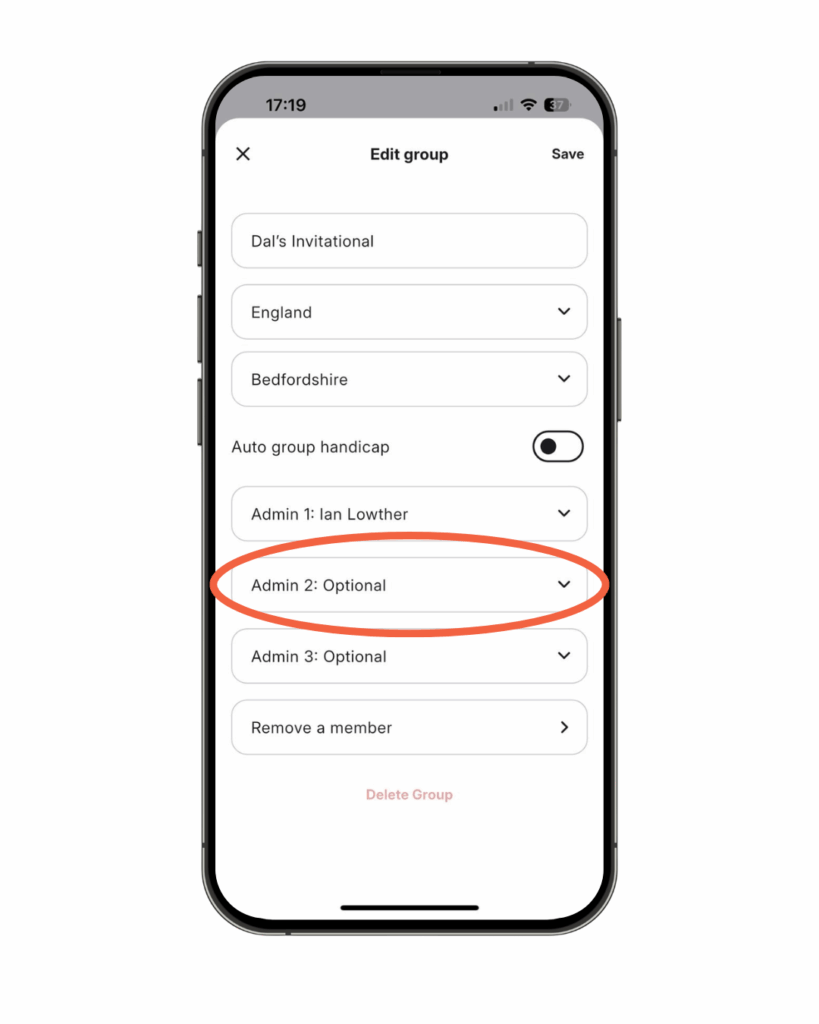
- Tap the cog icon in the top right corner.
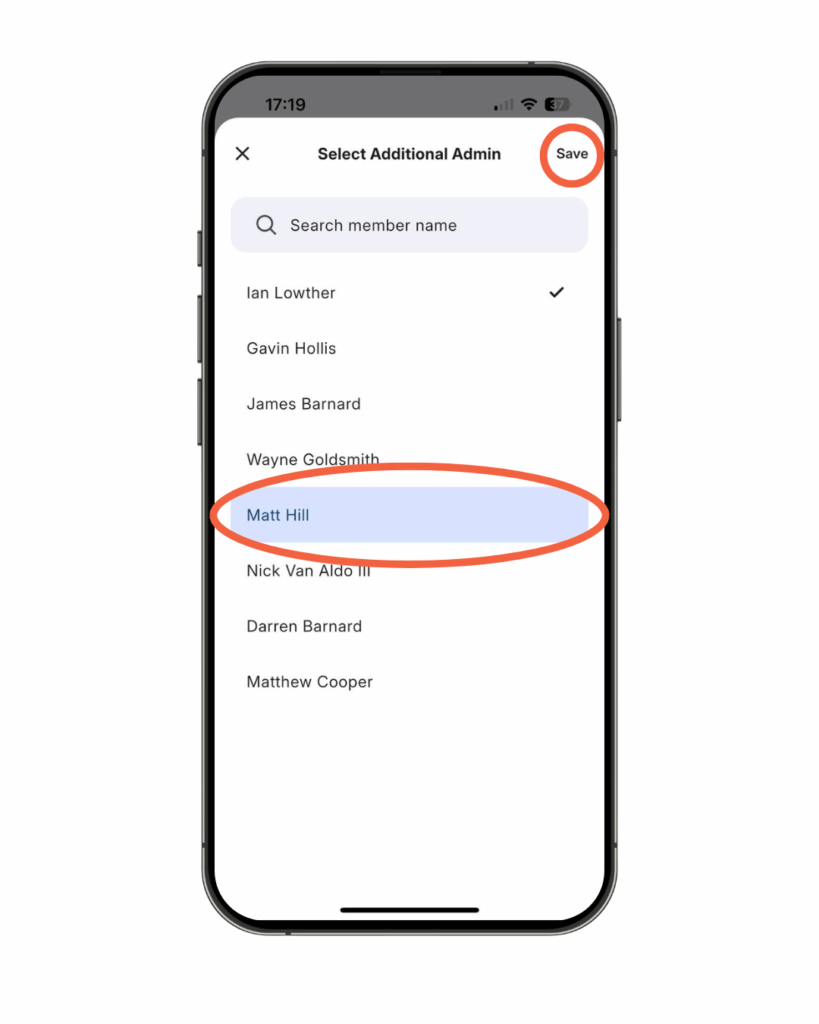
- Tap ‘admin 2: optional’, tap the member you want to make admin and then save.
How do I edit scores for a group event after they have been submitted in the ParUp Golf app?
These are instructions that the group organiser needs to follow in order to start a group event in the ParUp Golf app:
Once the marker has submitted the scores for themselves and their playing partners, there is no way of editing these (exactly like the old offline way of doing things – submitting the card is like signing the card!). There are several prompts after finishing the round, to make sure no mistakes are made, so just a case of quickly double-checking scores with playing partners before submitting, if in any doubt.
What happens if I lose signal while entering scores for a group event in the ParUp Golf app?
These are instructions that all users need to follow if they lose signal while entering scores for a group event in the ParUp Golf app:
In the event you lose signal while out on the course (when entering scores) and you are kicked out of the app, simply re-open the app, tap on the ‘Today’s Live Event’ banner on the home screen, followed by the ‘Start playing – Enter scores’ button. This will take you back to where you were and all of your previous scores will have been saved correctly prior to losing signal. No harm done!
How do I edit my profile in the ParUp Golf app?
These are instructions that the group organiser needs to follow in order to start a group event in the ParUp Golf app:
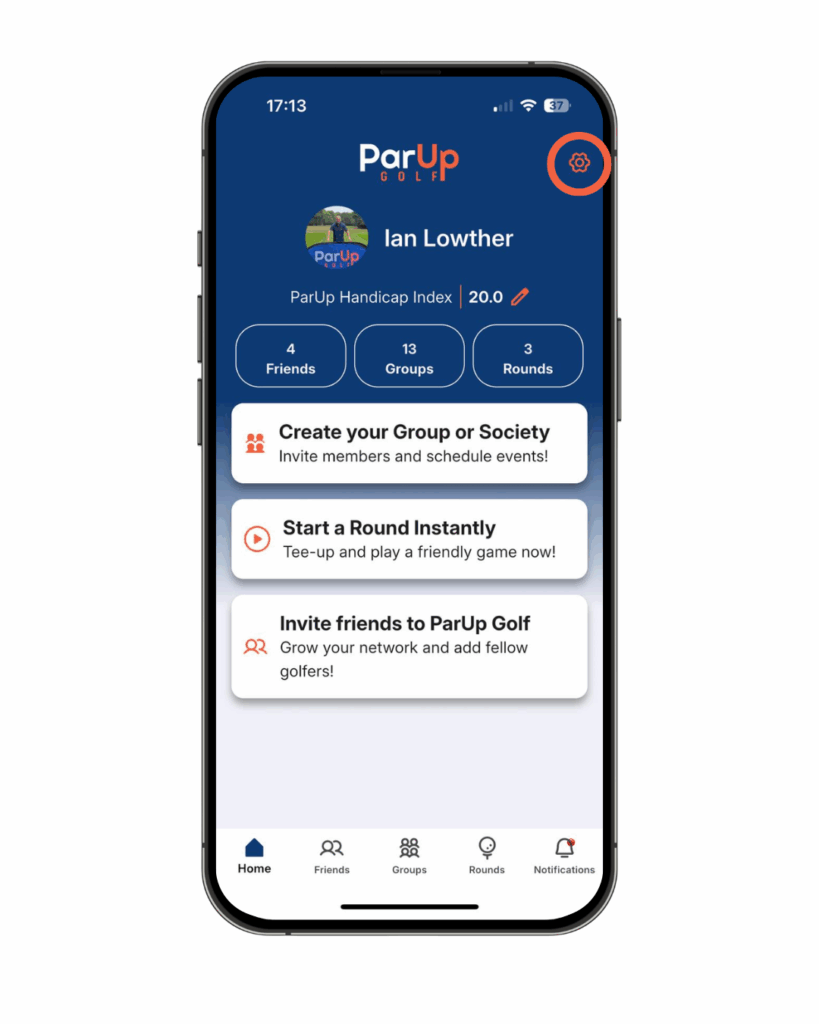
- Tap the cog icon in the top right corner of the home screen.
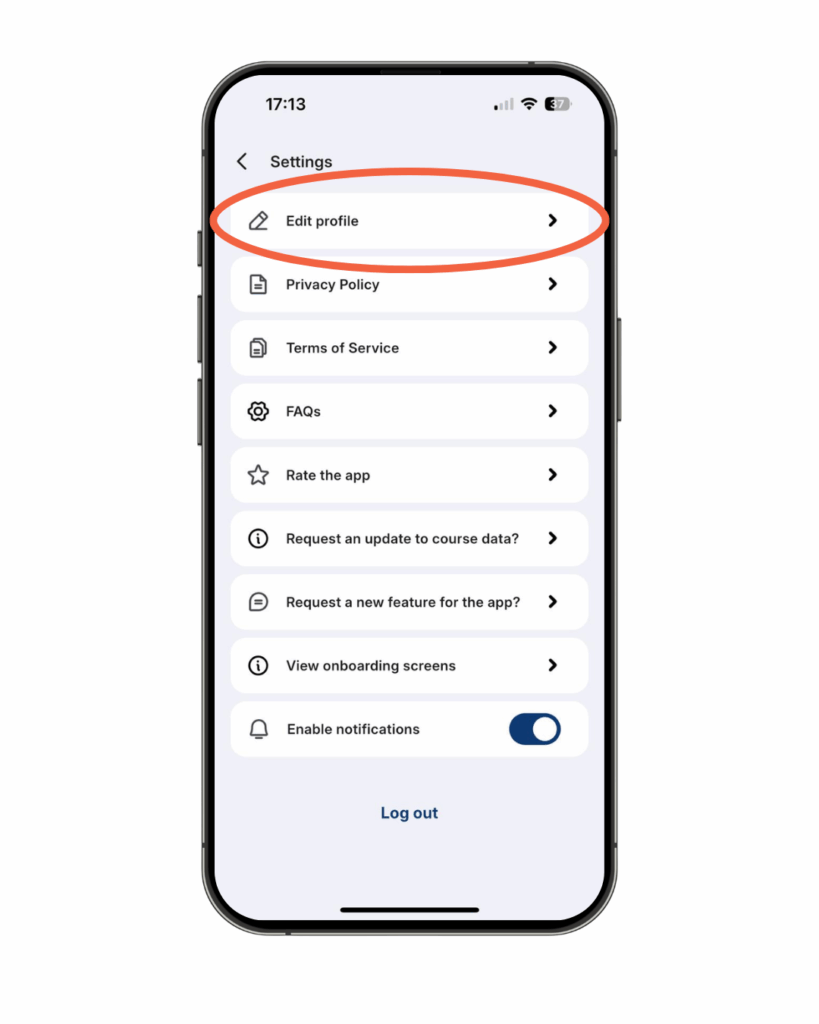
- Tap ‘edit profile’ at the top of the list displayed within the settings menu.
- Update any of the available fields displayed on the ‘edit profile’ screen and save.
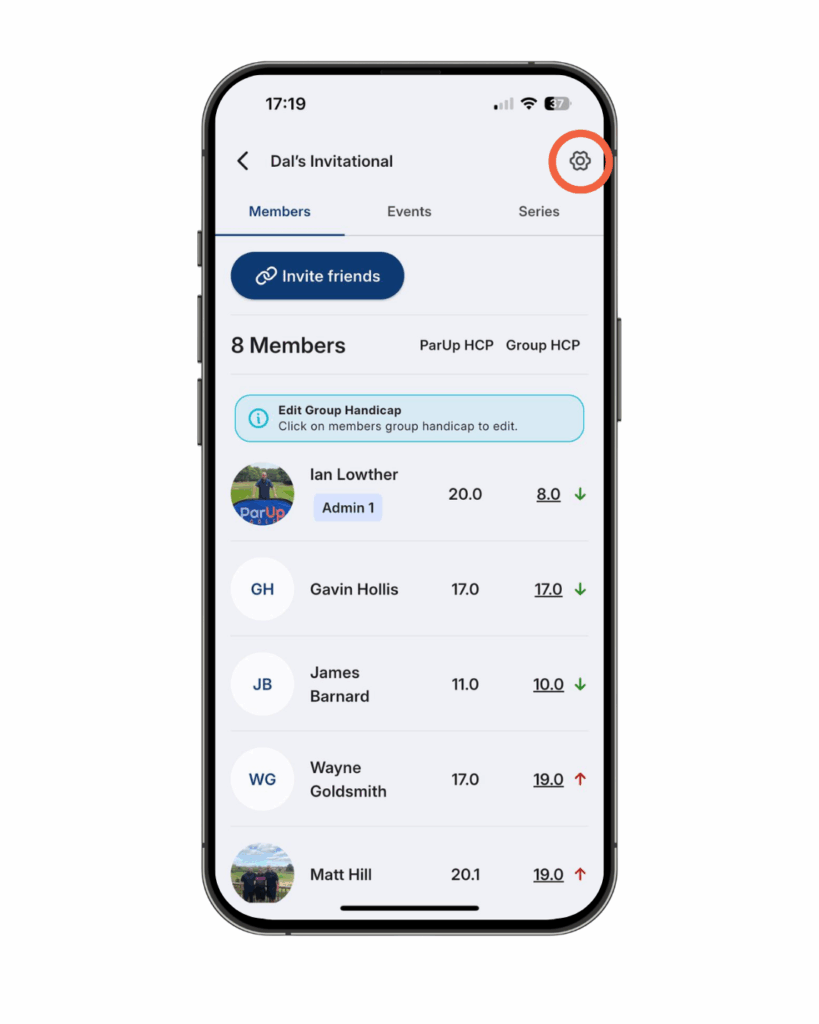
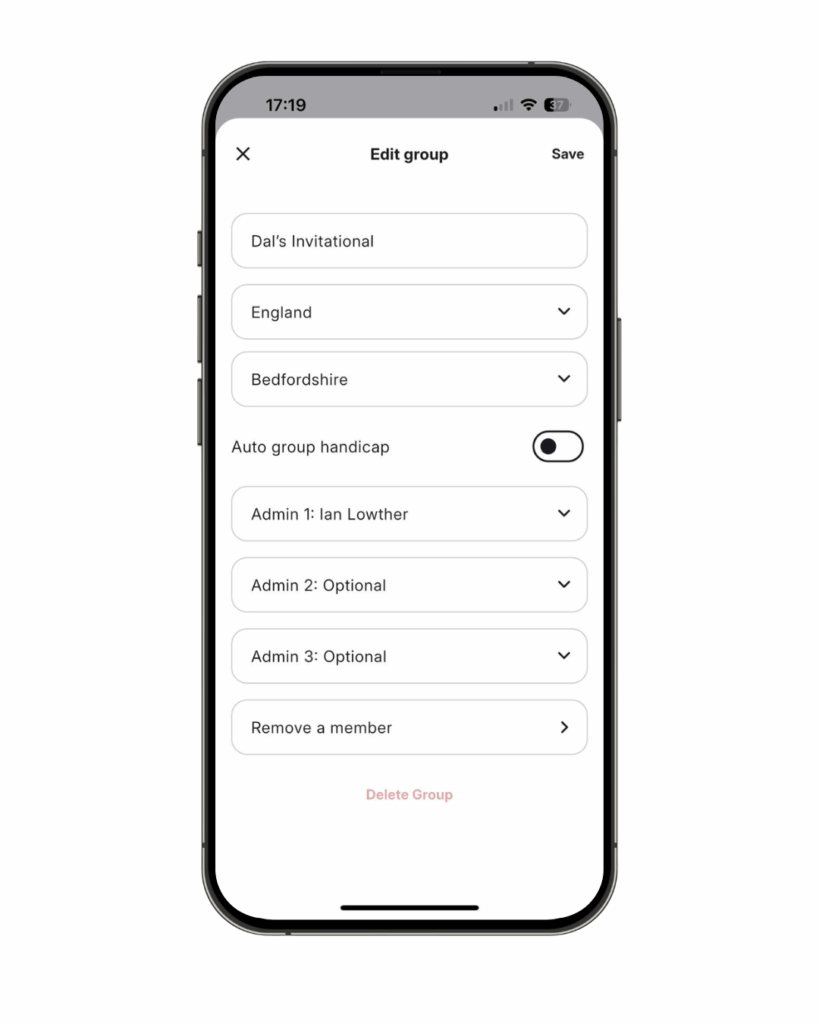
How do I edit my group in the ParUp Golf app?
These are instructions that the group organiser needs to follow in order to start a group event in the ParUp Golf app:
- Tap ‘groups’ in the bottom navigation.
- Tap the group you have just created.
- Tap the cog icon in the top right corner.
- Update any of the available fields displayed on the ‘edit group’ screen and save.
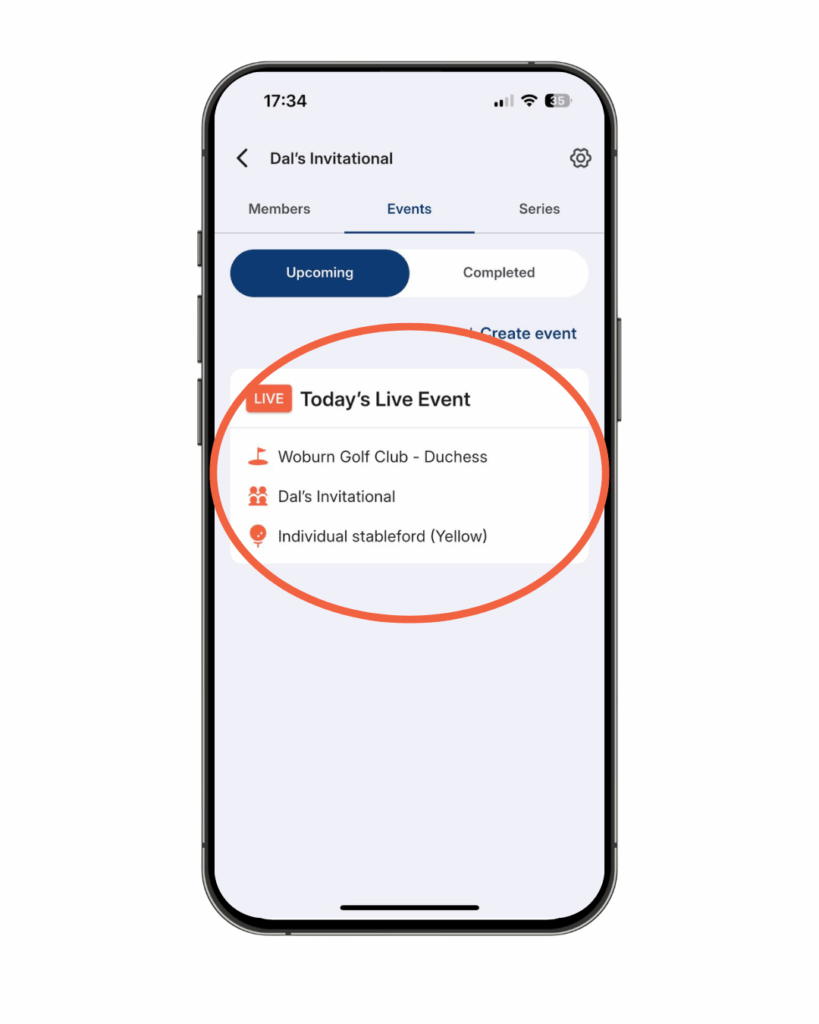
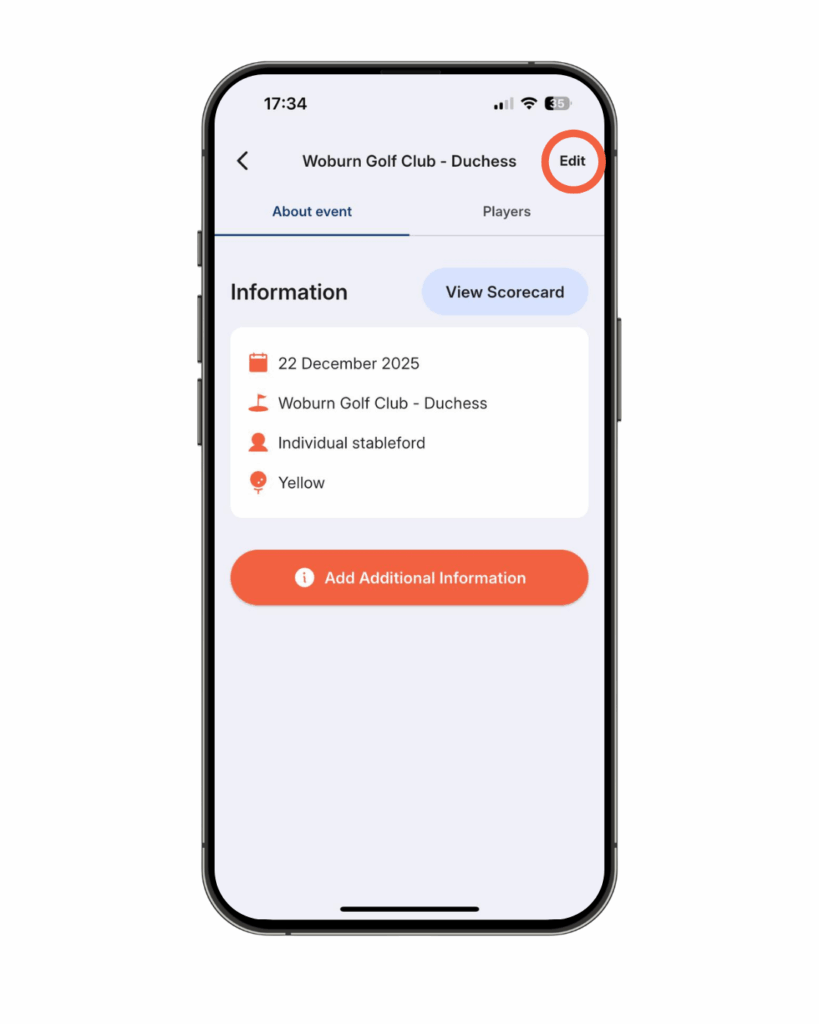
How do I edit a group event in the ParUp Golf app?
These are instructions that the group organiser needs to follow in order to start a group event in the ParUp Golf app:
- Tap ‘groups’ in the bottom navigation.
- Tap the group you have just created.
- Tap the ‘events’ tab at the top.
- Tap the specific event displayed within the ‘upcoming events’ screen.
- Tap ‘edit’ in the top right corner.
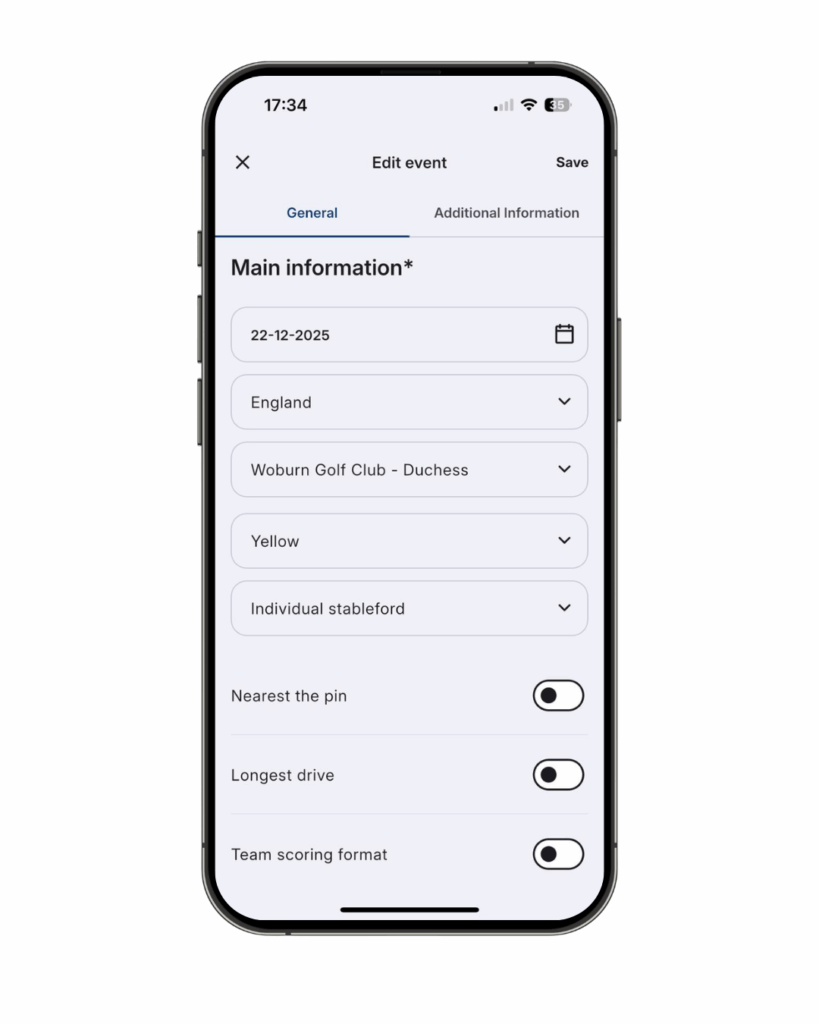
- Update any of the available fields displayed on the ‘edit event’ screen and save.
What do I do if I spot the course data is incorrect in the ParUp Golf app?
These are instructions that the group organiser needs to follow in order to start a group event in the ParUp Golf app:
- Couse data is always changing, so we encourage you to check the scorecard in advance.
- Tap ‘groups’ in the bottom navigation.
- Tap the group you have just created.
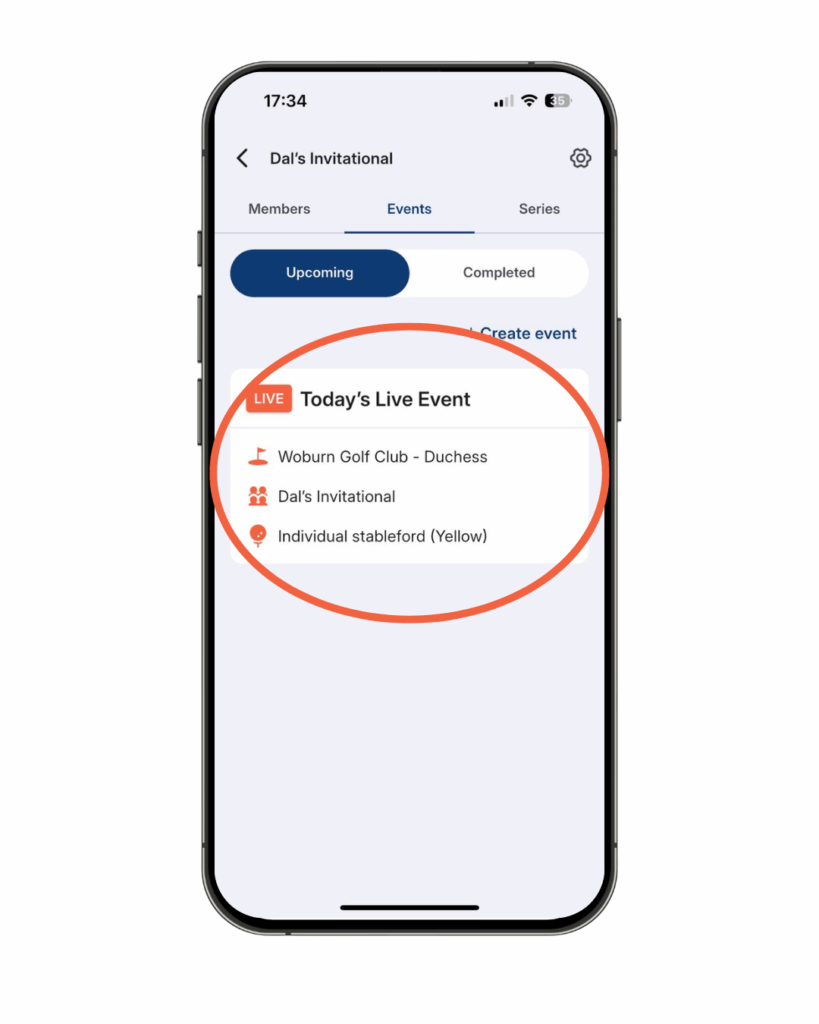
- Tap the ‘events’ tab at the top.
- Tap the specific event displayed within the ‘upcoming events’ screen.
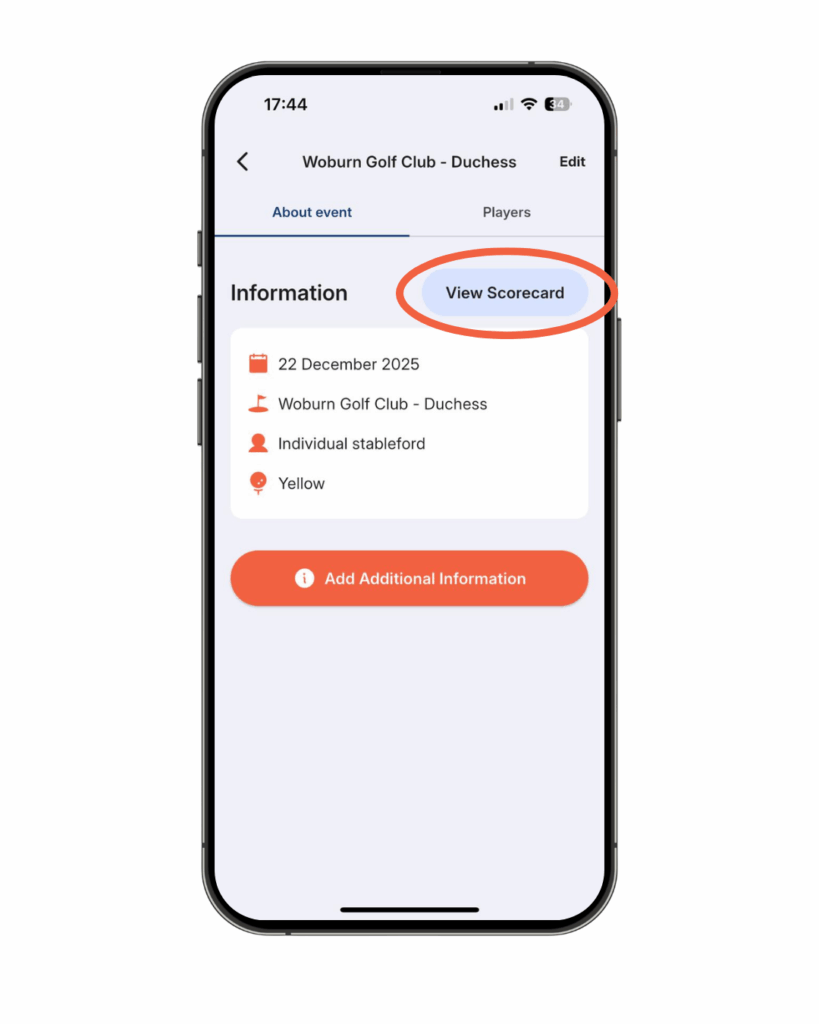
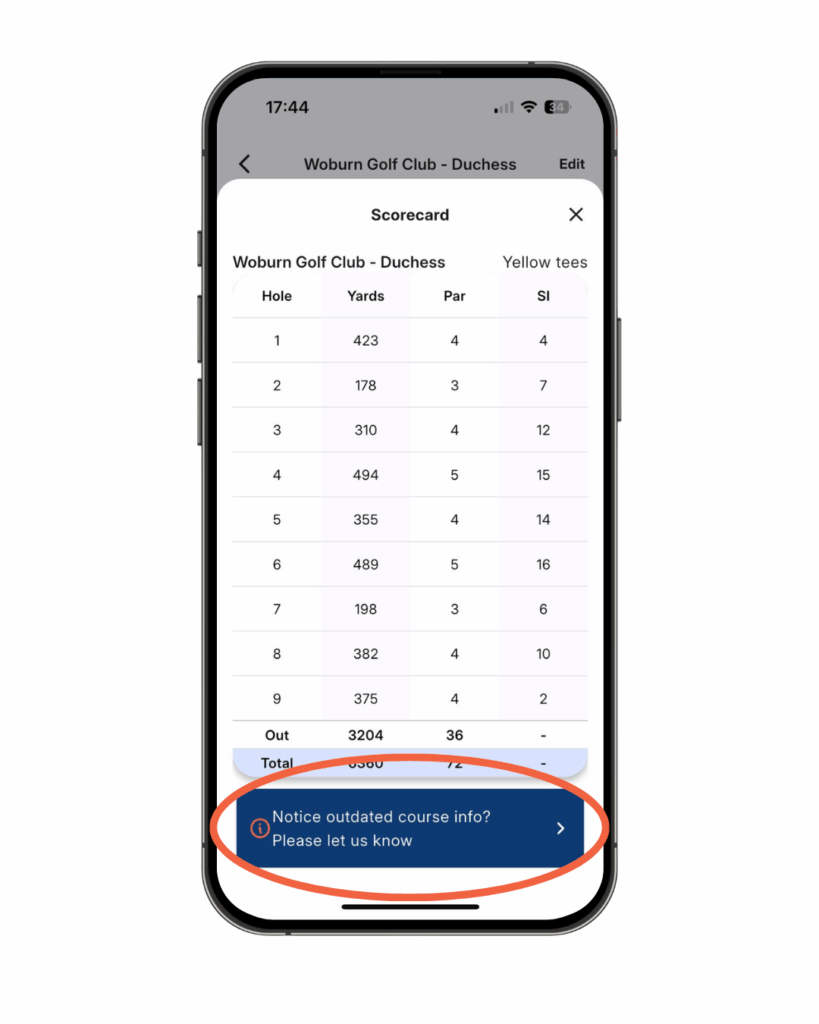
- Tap the light blue ‘view scorecard’ button and check the par and SI data is correct.
- If any data is incorrect, tap the navy blue button at the bottom of the screen. This will open your default email browser, pre-load an email to us – then simply just tell us the name of the course.
Why is the ParUp Golf app free?
We are very passionate about creating a good product for groups and societies and ensuring this core product always remains free so it is available to the masses. We are social golfers ourselves and want to enhance the social golf experience and enjoyment for groups around the world. There is no hidden agenda with this and we’ll be completely transparent with everything we do.
What new features are coming soon to the ParUp Golf app?
We have a list of exciting new features which will be rolled out over the coming months, a combination of features designed to help group organisers, as well as enhance the fun for all group members.
If you have any specific requests or great ideas, please feel free to share these via email. We are committed to building the very best product for groups of social golfers, so let us know what you want!
About the ParUp Golf app
ParUp Golf is the ultimate free golf app for society golfing. Find and join a local golf society or golf group near you. Alternatively, you can also just use the platform to host and facilitate your existing golf society events, whilst enjoying a range of features including a digital golf scorecard and live leaderboards. Check out the full range of features on the ParUp Golf app by clicking here. The latest version of the app can be downloaded on both iPhone and Android mobile devices.
We have lots of new features coming very soon to the app, but are also constantly looking to improve the current offering, so if you have any feedback or suggestions, we’d love to hear from you – please email us at info@parup.golf